Speakeasy
Use cinematic B-roll when the video needs visual proof.
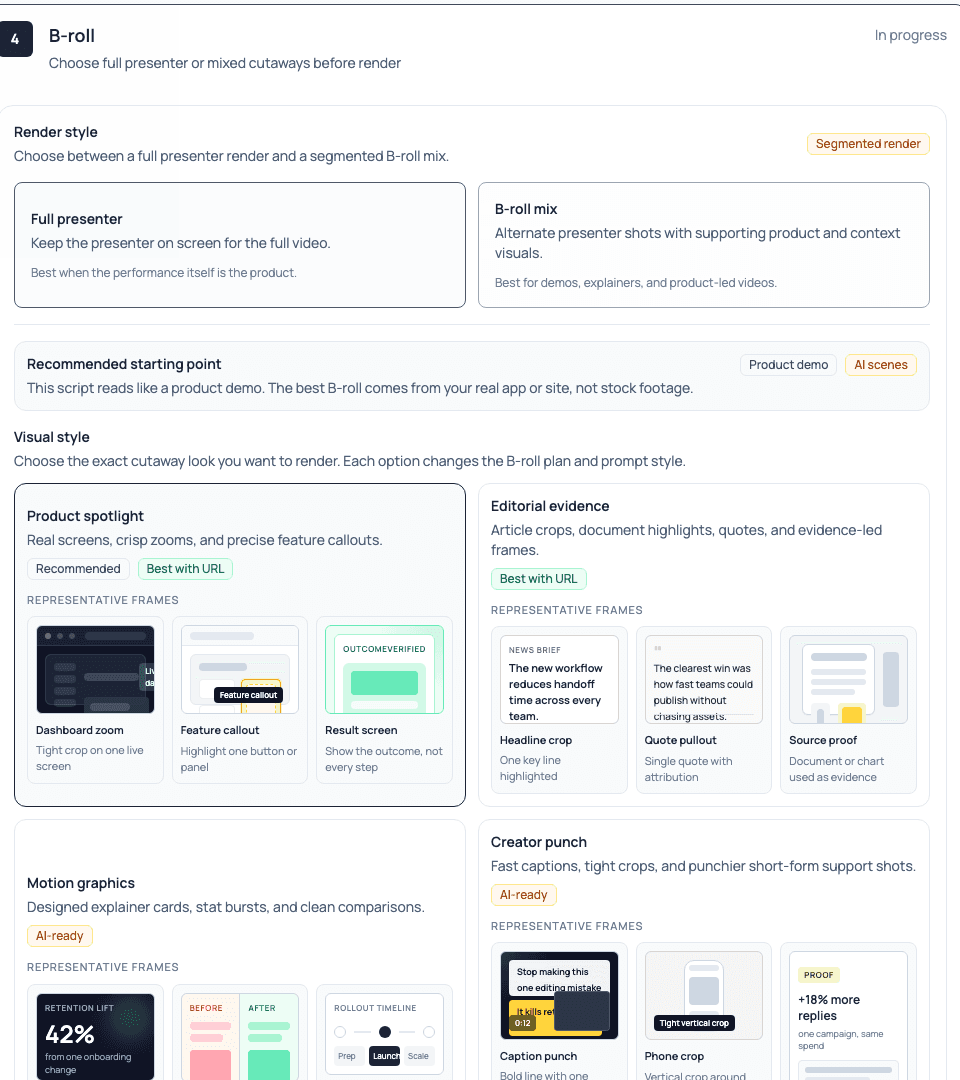
Cinematic B-roll mixes generated presenter shots with supporting visuals such as product visuals, pages, documents, charts, or other source assets.
Purpose
What B-roll does
Use B-roll when a single talking-head shot is not enough. It helps the viewer see the product, page, proof point, document, or workflow being discussed by the presenter.
Render
Render choices
- Full presenter
- Keep the presenter on screen for the full runtime. Use this when direct address and facial delivery are the main point.
- B-roll mix
- Alternate between presenter and supporting visuals. Use this for product walkthroughs, proof-led pitches, announcements, and explainers.
- Preview first
- Generate a preview before committing to a final render, especially when source material is long or visually dense.
Inputs
Source material to provide
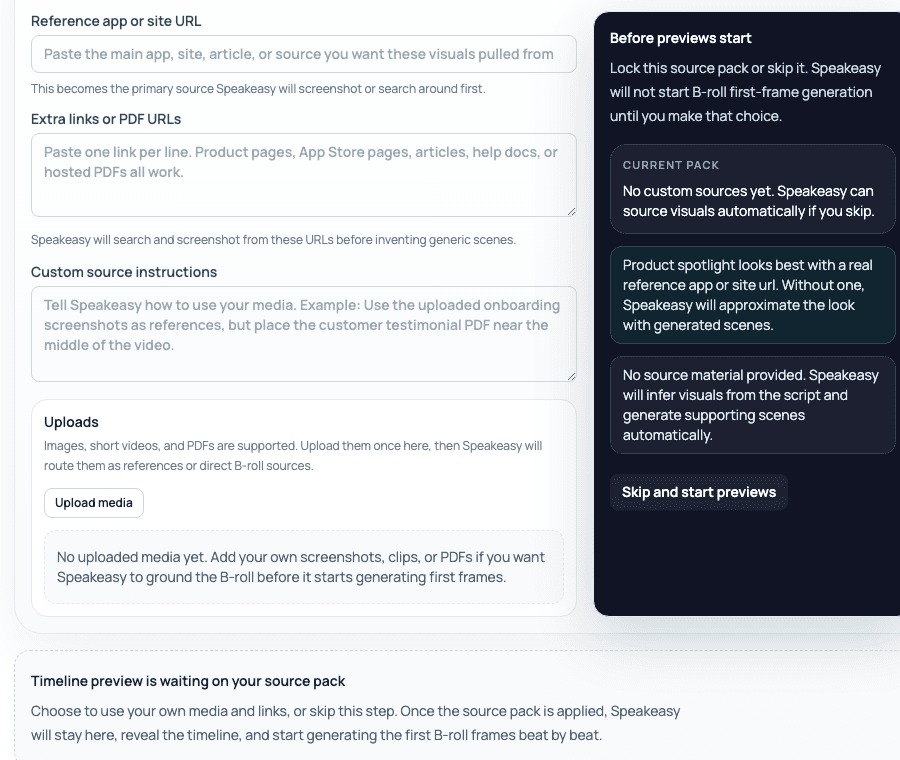
- Actual product images or page URLs.
- Short demo clips or screen recordings.
- Documents, charts, slides, or reports that should be visible in the video.
- Brand or offer material that helps the visual system choose relevant supporting shots.
- A clear CTA destination if the video will later be used in a campaign or landing page.
Use real assets when possible
B-roll is strongest when the render can reference the actual product, page, or proof material the viewer should understand.
Review
Review flow
- 01
Confirm the script
Make sure the script references the same product or proof points shown by the B-roll. - 02
Add source material
Attach or reference the assets the video should show. Avoid vague prompts when a real screenshot or document exists. - 03
Preview the render
Check that cuts, visuals, and presenter coverage support the message. - 04
Render the final video
Use the finished video directly, or import it into AI Studio when it needs personalization.
Handoff
After the Speakeasy render
Import the finished Speakeasy video into AI Studio when the B-roll video needs recipient-specific variables, campaign data, API-triggered rendering, callbacks, thumbnails, GIFs, or delivery workflows.