Browse documentation
Campaigns
Monitor campaign health before and after generation.
AI Studio gives operators a clear path from campaign setup to generated results, including live status refresh, failed video handling, stale render detection, retry generation, and export or delivery readiness.
Surfaces
Where to monitor
- Dashboard campaign list
- Use this for a high-level view of campaigns and the next action for each campaign.
- Campaign setup page
- Use this to inspect data source, uploaded spreadsheet status, row preview, variable mappings, manual recording, background mode, subtitles, and generation controls.
- Generated videos page
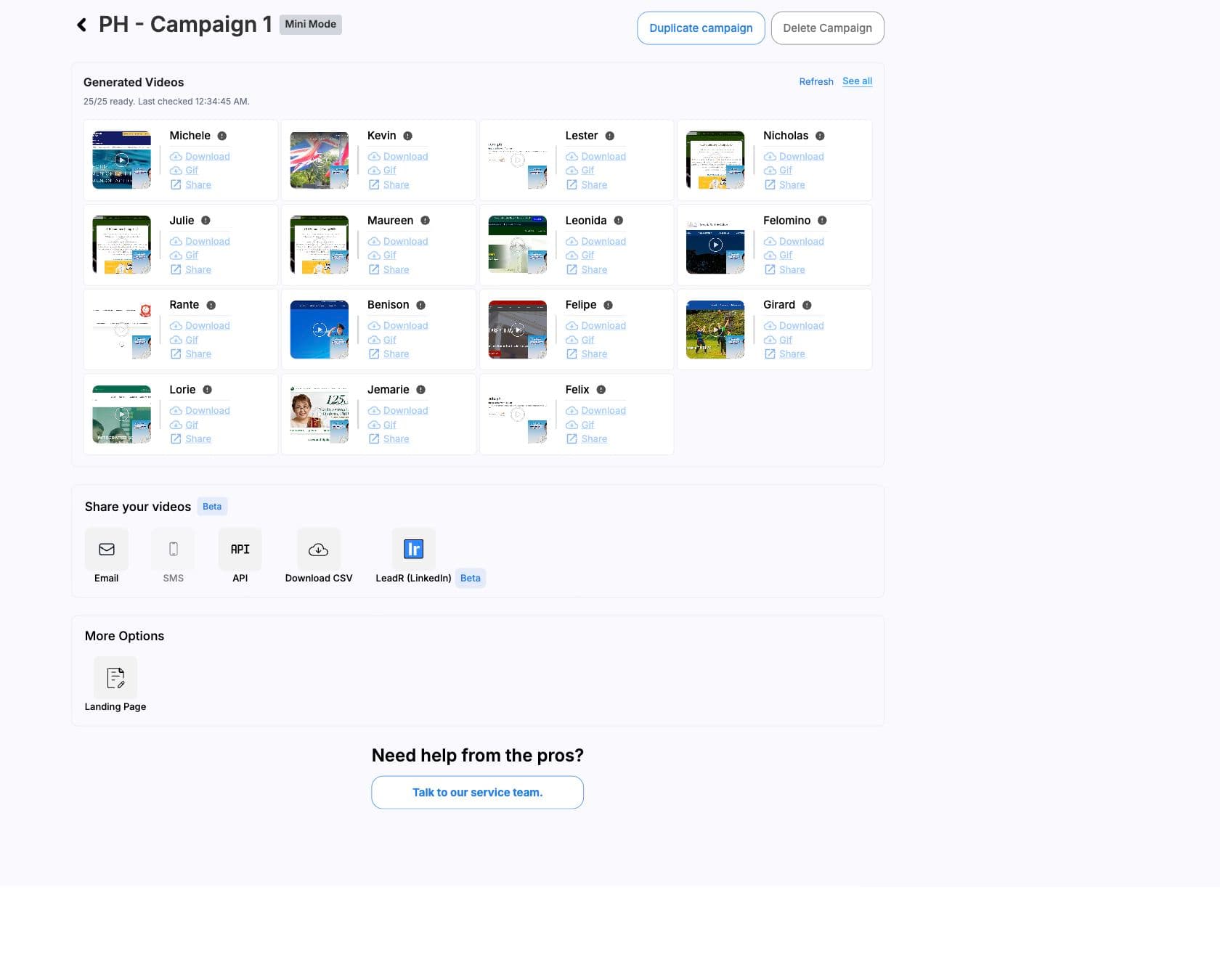
- Use this after generation starts. It shows generated video cards, live refresh, ready counts, failed counts, stale counts, retry actions, sharing, landing pages, and CSV/XLSX export.
Campaigns
Campaign states
- Draft
- The campaign is still being configured. Finish data source upload, variable mapping, backgrounds, subtitles, and mode selection before generating.
- Generating
- One or more generated video rows are queued, preparing, or processing.
- Generated
- The campaign has completed generated outputs and can move to review, export, landing pages, email, API, or Leadr handoff.
- Needs review
- Some rows failed, stopped updating, or need operator review before delivery.
- Failed
- The campaign has generated rows, but no successful videos are available.
Generated videos
Generated video states
- preparing
- The generated video record exists and is being prepared for render.
- queued
- The render is waiting for processing capacity.
- processing
- The render is active. The page refreshes status every five seconds.
- succeeded
- The video is ready and should expose download/share assets when available.
- completed
- Handled as a ready state in the UI.
- failed
- The render did not finish. The card can show the error message and execution identifier.
- needs review
- The result stopped updating long enough to be treated as stale.
Live refresh
The generated videos page listens for server events and also refreshes generated video status every five seconds while renders are active.
Recovery
Retry generation
Retry generation appears on the generated videos page when the batch is in a recoverable failed state: there are generated rows, no ready videos, no active videos, and every visible generated video failed.
- 01
Read the failure reason
Check failed cards for error messages and execution names before retrying. - 02
Fix the input problem
Common fixes include uploading a valid spreadsheet, correcting variable mappings, replacing bad background URLs, adding missing background coverage, checking quota, or re-uploading the source video. - 03
Prepare retry
Click Retry generation. AI Studio clears the failed generated list and returns the campaign to setup so the next generation attempt starts cleanly. - 04
Regenerate
Generate again from the campaign setup page after the underlying issue is fixed.
Checks
Troubleshooting checklist
- If sharing is disabled, confirm generated videos exist and the campaign has a readable CSV data source.
- If CSV export fails or sharing shows a CSV error, reload the campaign data source or upload the spreadsheet again.
- If every video fails, inspect source video availability, quota, variable mappings, and background URLs before retrying.
- If a video is marked needs review, refresh the page and inspect the generated card before delivering it.
- If Mini mode fails, check that every personalized moment has background coverage.
- If delivery is blocked, wait for active renders to finish and confirm the required delivery fields are present.
Next
Next steps
Generated video libraryReview result cards, refresh, retry, exports, and share options.Generated assetsUnderstand status, share URL, MP4, thumbnails, GIF previews, and row metadata.Data sourcesFix row and mapping problems before retrying.Background modeCheck URL, timing, chroma, and coverage issues for background renders.