Background mode
Show row-specific context behind the presenter.
Background mode lets a campaign change the scene behind a presenter for each recipient row. Use it for websites, images, videos, LinkedIn captures, uploaded media, generic desktop scenes, and chroma-key recordings.
Model
How Background mode works
Background mode adds timed background segments to a campaign. Each segment has a start time, end time, type, layout settings, and either a fixed upload or a campaign column that supplies the row-specific asset.
During generation, BHuman builds the asset matrix for the campaign rows and composes the presenter video with the selected background media.
Types
Background types
- Direct link
- Use a direct image or video URL. The link should point to a valid media file such as PNG, JPG, MP4, or WebM.
- Public website
- Use a public URL that BHuman can screenshot. The app prepares website screenshots before rendering.
- LinkedIn profile URL
- Use a LinkedIn profile URL when the campaign should display a row-specific profile capture.
- Upload image or video
- Use when one uploaded asset should be used for the background segment.
- Generic desktop
- Use a default desktop background when the segment needs a neutral screen scene.
- Chroma
- Use when the source video was recorded against a keyed background and the background should replace that color.
Controls
Current UI controls
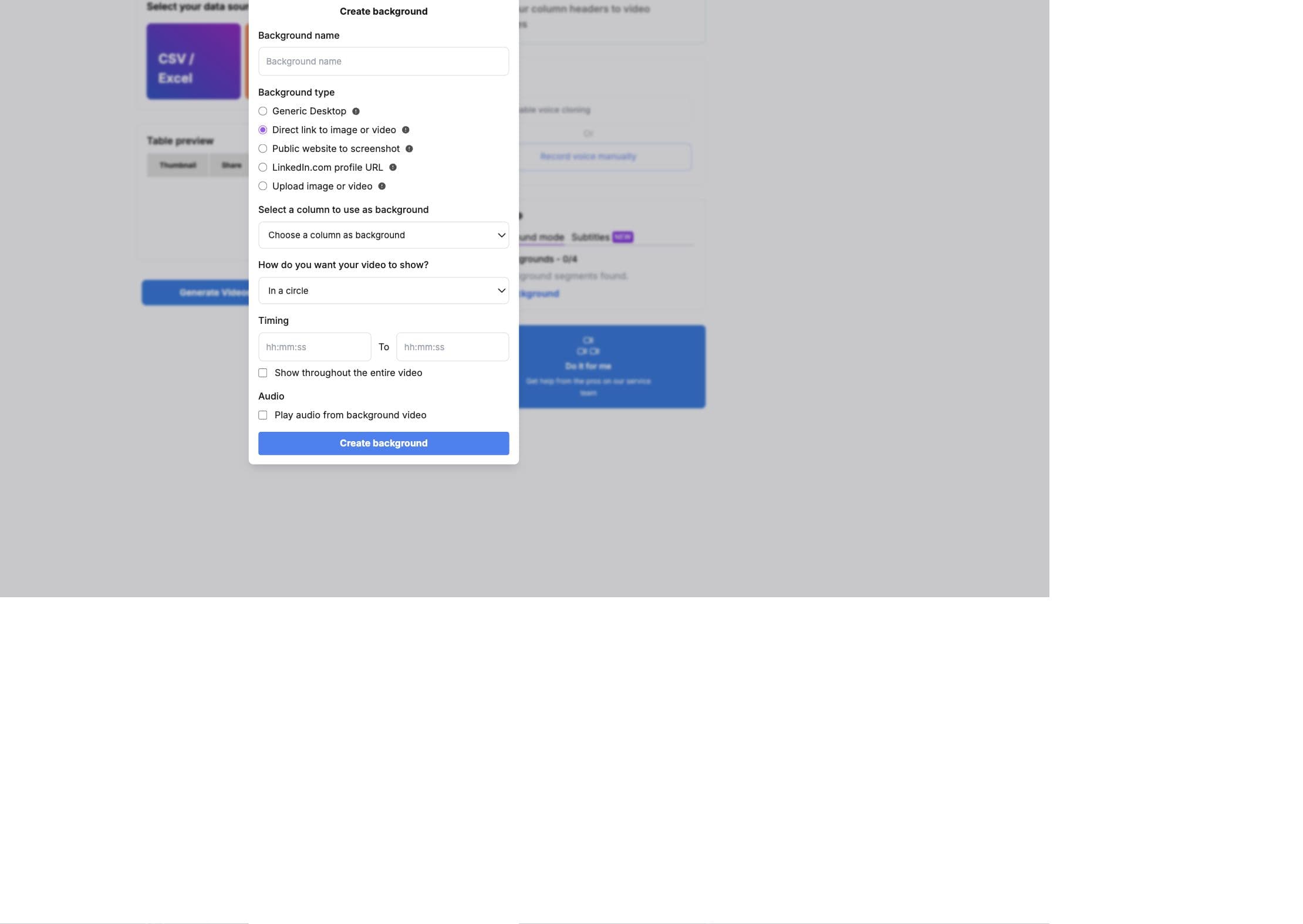
- 01
Name the background
Use a recognizable segment name so the campaign side panel is easy to scan. - 02
Choose the background type
Select Generic Desktop, Direct link to image or video, Public website to screenshot, LinkedIn profile URL, or Upload image or video. - 03
Choose the source
For row-specific backgrounds, select the campaign column. For uploads and generic desktop, use the uploaded or default asset. - 04
Choose presentation mode
Show the presenter in a square, in a circle, or with greenscreen/chroma key. - 05
Set timing
Set a start and end time, or choose to show the background throughout the entire video. Background segments cannot overlap. - 06
Optional audio or chroma settings
Direct-link and upload video backgrounds can play their own audio. Chroma mode exposes color, similarity, and blend controls.
API and filter config
Validation
What Background mode checks before rendering
- Missing columns stop generation with a specific column error.
- Direct media links are checked for supported media extensions or display validity.
- Missing URL schemes are normalized by adding HTTPS before processing.
- Website and LinkedIn backgrounds are converted into images before the render job.
- Overlapping background segment windows are rejected.
- Uploaded and generic backgrounds require an uploaded or default asset before launch.
Best practice
API
API payload shape
API-triggered campaigns can pass row-specific background assets in the same order as recipient rows. The exact endpoint schema is in Swagger; this shows the integration pattern.
Background mode payload
JSON{
"campaign_id": "YOUR_CAMPAIGN_ID",
"variables": ["first_name", "company"],
"names": [
["Alex", "ExampleCo"],
["Jordan", "Sample Labs"]
],
"assets": [
["https://example.com/product", "https://example.com/alex-demo.mp4"],
["https://example.com/pricing", "https://example.com/jordan-demo.mp4"]
],
"backgrounds": [
{
"name": "product_page",
"kind": "site",
"start": 0,
"end": 4,
"config": {
"column": "product_url",
"mode": "circle",
"position": "bottom-right",
"scale": 0.4,
"brightness": -0.5,
"audio": false
}
}
]
}Next