AI Studio
AI Studio feature reference.
Use this page as the live feature map for AI Studio. It is organized by the actual product workflow: create a template, prepare personalization, launch a campaign, render videos, deliver assets, and automate through integrations or the API.
Workspace
Dashboard and workspace
- Dashboard
- The AI Studio command center for campaigns, templates, support resources, product orders, onboarding, and quick launch actions.
- Campaign list
- Shows existing campaigns, their current state, and the path back into generated results or campaign setup.
- Template list
- Shows reusable video templates, lets users open a template editor, and starts new campaigns from an existing template.
- Support side panels
- Surface guides, tours, office hours, quick links, and resource links without interrupting the main workflow.
- Welcome template tutorial
- Guides new users through creating a first variable, generating a sample, and watching the result.
Creation
Template creation paths
A template starts with one source video. The current AI Studio create flow exposes five source paths.
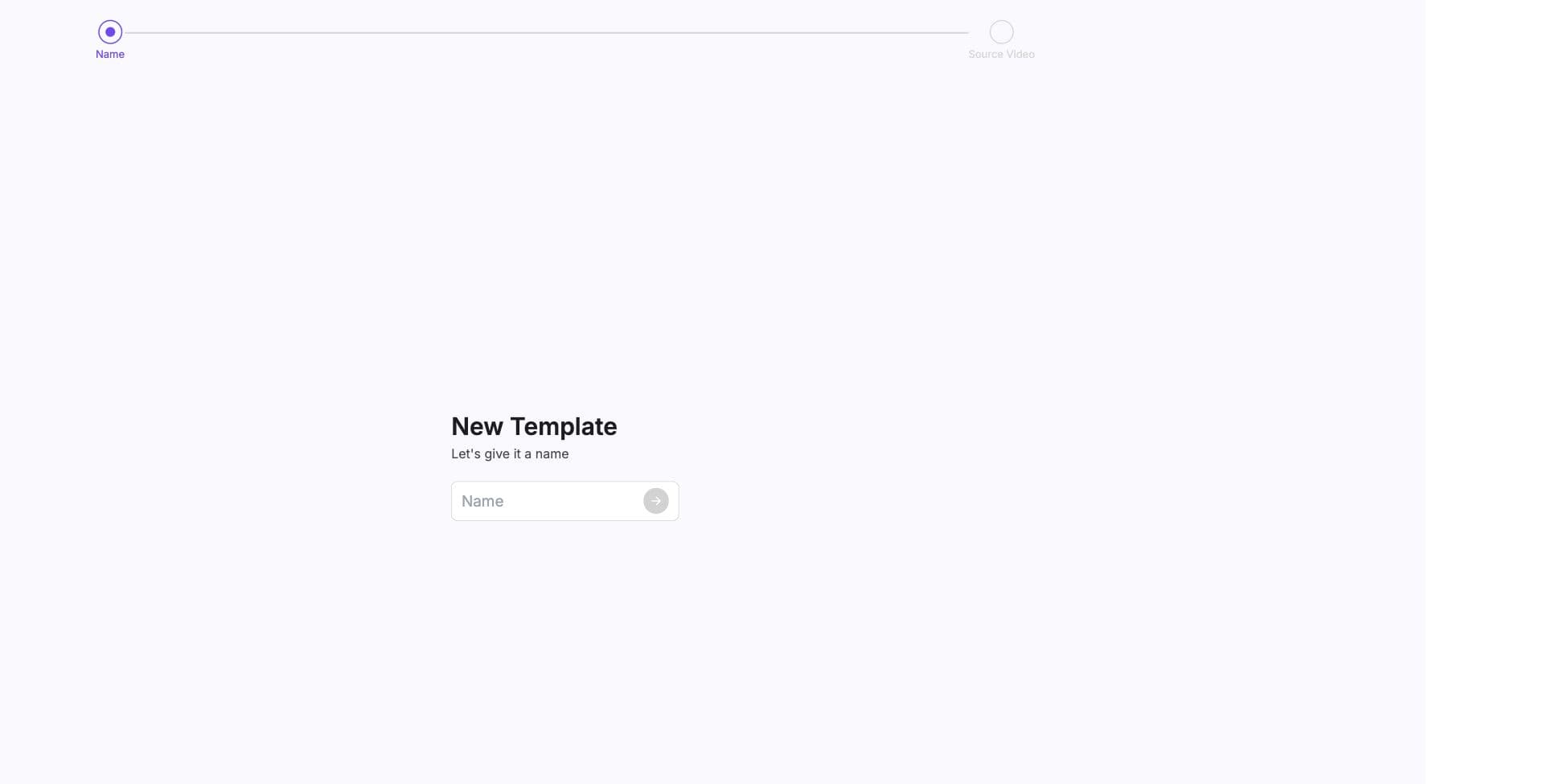
- Record a video
- Use the browser camera and microphone in AI Studio. The recorder keeps script notes beside the capture experience.
- Upload a video
- Attach an existing recording. Camera and microphone access do not open, and AI Studio prepares the preview and transcript after upload.
- Speakeasy video
- Import a finished Speakeasy presenter video into AI Studio so it can be personalized like any other template.
- Community template
- Browse reusable starter templates, including the welcome template and category-filtered template store entries.
- Text-to-video
- Generate presenter videos from script text and use text-to-video templates when that source path is enabled.
Editor
Template editor features
- Template name
- Rename the video instance and keep the asset recognizable before launching campaigns.
- Video preview
- Review the source video, verify the uploaded asset is available, and check whether the recording can support Mini or Max presentation modes.
- Transcript editor
- Transcribes the source video, caches transcript data, lets users select words, creates variables, replaces duplicate variable definitions, and deletes variable spans cleanly.
- Variables panel
- Shows variable segments, transcript linkage, standard or premium voice status, and jump-to-transcript actions.
- Voice settings
- Standard voice is the default. Premium voice and tuning are available per variable for eligible plans.
- Generation mode
- Best quality uses the current full-script generation path. Preserve source video keeps variable lip sync behavior for templates that need it.
- Manual timing
- For no-lipsync workflows, variable timing windows store start time, window end time, anchor, and fit behavior.
- Training audio
- Advanced template controls support uploading training audio when the voice needs more source material.
- Try sample
- Generates one test video from sample variable values before a campaign is launched.
- Create new campaign
- Opens campaign setup after the template has a source video and at least one valid variable.
Readiness rule
Samples and campaigns stay disabled until the template has a source video and at least one variable from either the transcript or manual timing setup.
Campaigns
Campaign setup features
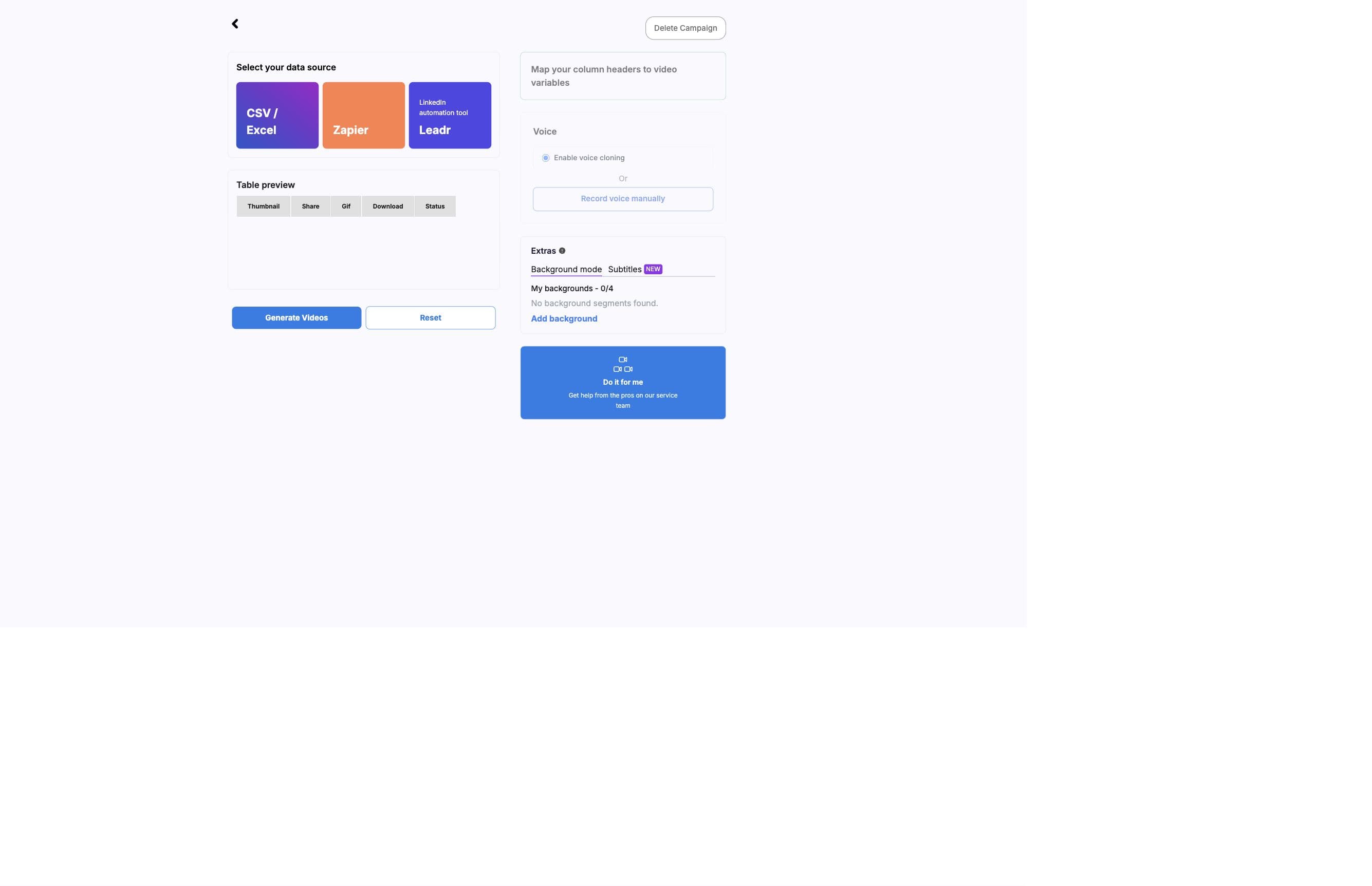
- CSV and Excel
- Upload spreadsheet data, normalize it for campaign use, preview rows, and map headers to template variables.
- Zapier
- Open the BHuman Zapier flow and send app-triggered data into a campaign.
- Leadr
- Use a selected AI Studio template inside Leadr outreach and LinkedIn-style campaign workflows.
- Pabbly and API
- Backend integration paths support object-style payloads, ordered arrays, callback URLs, and generated asset polling.
- Variable mapping
- Maps each template variable to a source column, ignores reserved output columns, and auto-selects exact header matches when possible.
- Mini or Max mode
- Campaigns choose a viewing mode before rendering. Mini requires background coverage around personalized moments; Max is plan and face-distance gated.
- Manual audio recording
- Lets users record custom variable audio instead of using the generated voice path, except on store templates where the control is disabled.
- Do It For Me
- Offers a managed handoff path when a user wants BHuman to help launch the finished campaign.
Extras
Backgrounds and subtitles
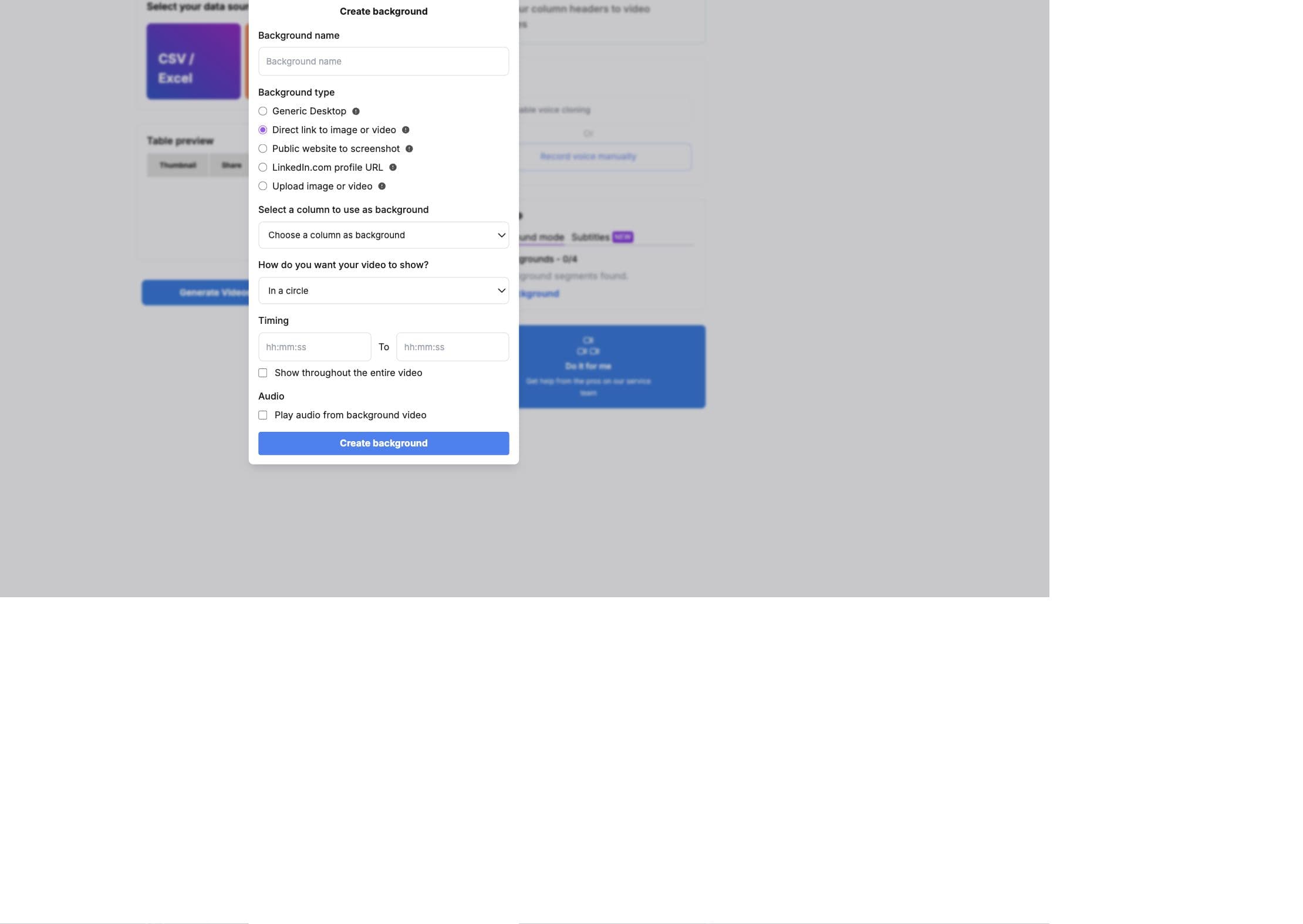
- Background source types: generic desktop, direct image or video link, public website screenshot, LinkedIn profile screenshot, and uploaded image or video.
- Presenter display modes: square, circle, and greenscreen/chroma key.
- Timing options: exact start and end time or show throughout the entire video.
- Validation catches invalid time ranges, missing source columns, missing uploads, unsupported direct media links, LinkedIn screenshot failures, and overlapping segments.
- Subtitles use the edited template transcript with row-specific variables inserted for each generated video.
Results
Generated video library and recovery
- Live status refresh
- Generated results load over SSE and refresh every five seconds while active videos are queued, preparing, or processing.
- Ready outputs
- Succeeded or completed videos expose download, hosted share link, thumbnail, GIF preview, source row index, and row values.
- Failed outputs
- Failed cards show error messages and pipeline execution names when available.
- Stale outputs
- Videos that stop updating for long enough are marked as needing review instead of looking permanently in progress.
- Retry generation
- When the full batch failed and no active or ready videos remain, the results page can prepare the campaign for another generation attempt.
- CSV and XLSX export
- Download updated campaign rows with generated asset columns after rendering.
Delivery
Delivery and sharing features
- Send generated videos from connected mailbox workflows, track sending progress, and open email reports when activity exists.
- SMS
- SMS delivery is represented in the share UI, with availability controlled while improvements are in progress.
- Landing pages
- Open the landing page builder from generated results to pair videos with CTA widgets and page content.
- API
- Open the public API reference from the share page when a workflow needs to consume generated assets programmatically.
- Leadr handoff
- Move into Leadr when the generated videos should be used in LinkedIn-style outreach.
Developers
Automation and API features
- Pipeline endpoints
- Campaign generation, Zapier, Pabbly, Leadr, sample generation, preview generation, and pipeline webhooks are handled by AI Studio backend routes.
- Generated video endpoints
- Generated videos can be fetched by campaign ID, video instance ID, generated video ID, or user-scoped admin views where available.
- Webhook settings
- Saved webhooks and per-request callback URLs receive asynchronous generated asset payloads.
- Swagger
- The AI Studio backend includes Swagger UI pointed at openapi.json. Use it for endpoint-level schemas when the public docs summarize behavior.