AI Studio
Prepare a reusable video template for personalization.
AI Studio is where a source video becomes a campaign-ready template. The template stores the video, transcript, variables, voice behavior, timing, sample results, and campaign handoff settings.
Template workspace
What AI Studio does
AI Studio turns one source video into a reusable template that can generate many personalized videos. The source can be recorded in BHuman, uploaded from a file, imported from Speakeasy, created from a community template, or generated through the text-to-video path.
Once a template exists, the editor is responsible for transcript review, variable creation, voice behavior, manual timing, sample generation, campaign creation, and generated result history.
Source video
Choose how the base video is created
- Record a video
- Use the browser camera and microphone in AI Studio. This is best when the finished video should feel like a direct human recording.
- Upload a video
- Use an existing recording from your computer. AI Studio attaches the file, prepares the preview, and generates the transcript after upload.
- Speakeasy video
- Import a finished Speakeasy presenter video when the presenter and voice were generated before AI Studio personalization.
- Community template
- Browse reusable starter templates, including the welcome template and category-based template store entries.
- Text-to-video
- Generate a presenter video from script text and then personalize that generated source like a template.
Readiness
What must be ready before samples and campaigns unlock
- The template has a valid source video attached.
- The transcript has at least one variable, or the template has at least one manual timing variable.
- If lip sync is enabled, variables should be linked to transcript spans.
- If lip sync is disabled, variable timing windows should define when replacement audio should play.
- The source video is still available and can be loaded by the preview player.
Why the buttons can be disabled
Editor
Main editor areas
- Video preview
- Confirms the source video is available and gives the generation workflow the media dimensions and face-distance checks it needs.
- Variables panel
- Lists personalized segments, transcript linkage, voice model, and voice tuning access.
- Transcript
- Lets users select words, name variables, replace duplicate definitions, delete variables, and reload transcript data when needed.
- Campaigns
- Shows campaigns already attached to the template and gives a quick path back into campaign setup or results.
- Sample and other generated videos
- Shows sample outputs and other generated results tied to this template.
- Advanced
- Contains controls such as training audio upload and other template-level advanced settings.
- Do It For Me
- Offers a managed support path for users who want BHuman to help launch.
Setup
Template setup flow
- 01
Create the template
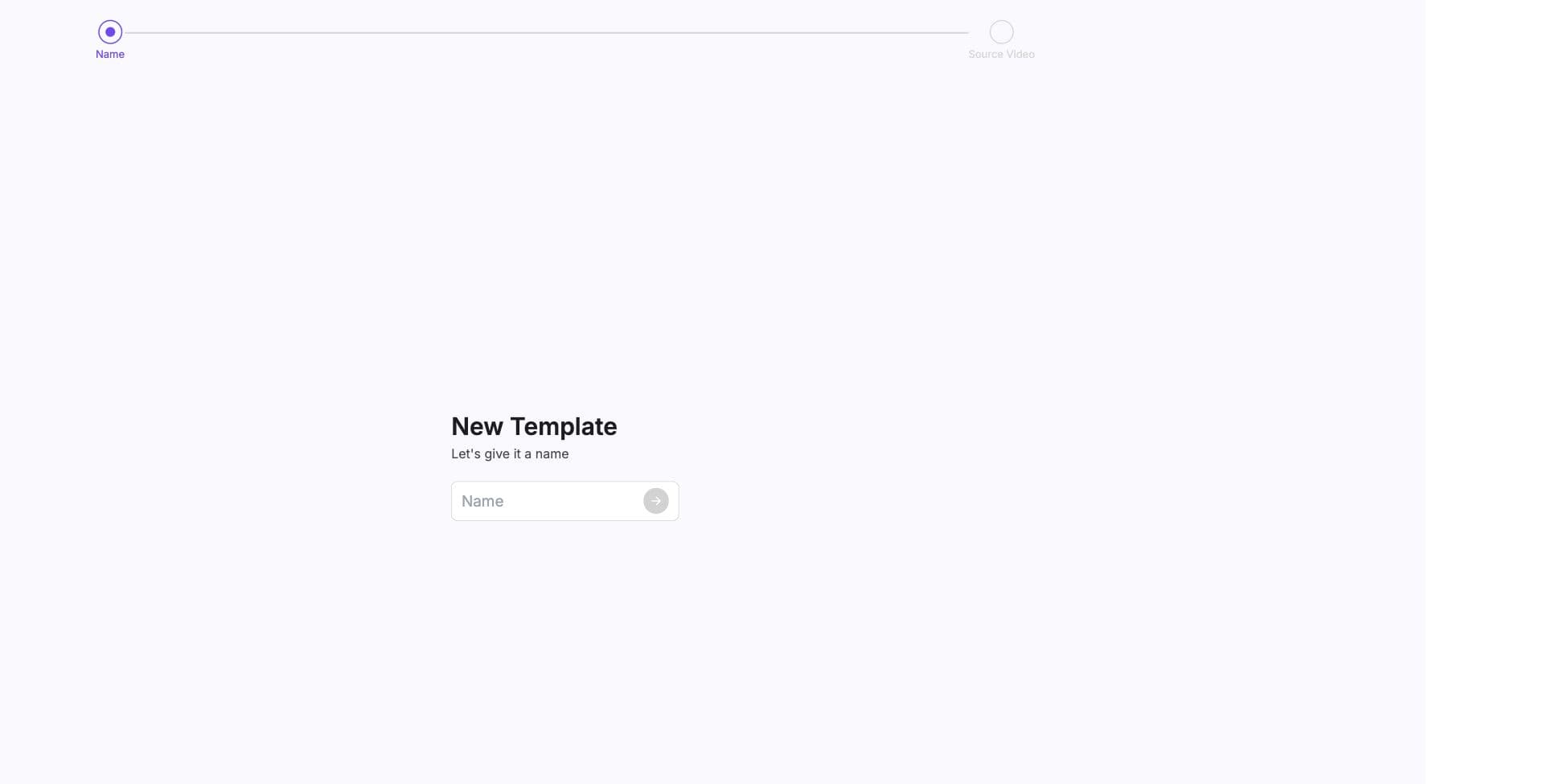
Name the template and choose a source path: record, upload, Speakeasy import, community template, or text-to-video. - 02
Review the source video
Confirm the preview loads and the recording is suitable for the personalization mode you plan to use. - 03
Prepare the transcript
Let AI Studio transcribe the video, then correct words that matter for variables, subtitles, and sample generation. - 04
Create variables
Select words in the transcript and name each variable. Keep names stable because campaigns, Zapier, Pabbly, Leadr, and API payloads depend on them. - 05
Choose voice and timing behavior
Use standard voice by default, premium voice when eligible, generation mode when needed, and manual timing for no-lipsync workflows. - 06
Generate a sample
Enter test values, choose Mini or Max, optionally add sample backgrounds or subtitles, and inspect the generated output. - 07
Create a campaign
After the sample looks right, create a campaign and connect data rows for full generation.
Campaign handoff
What carries forward into campaigns and API calls
- Video instance ID
- The template identifier used by samples, template history, and direct template-related API paths.
- Campaign ID
- The generation workflow identifier used by campaign pages, generated video results, and campaign pipeline endpoints.
- Variables
- The exact names that CSV headers, Zapier fields, Pabbly keys, Leadr mappings, and API arrays must provide.
- Transcript and words
- Used for transcript-linked variables, subtitle generation, and generation routes that use source word timing.
- Voice and timing configuration
- Controls lip sync behavior, manual audio windows, premium voice tuning, and how generated audio is aligned.
- Sample history
- Gives users a quality checkpoint before larger campaign generation starts.
Next