Account settings
Share templates, folders, and credits with a workspace.
Team settings let workspace owners and admins switch workspaces, refresh access, add users by email, remove members, and work from a shared pool of credits and assets.
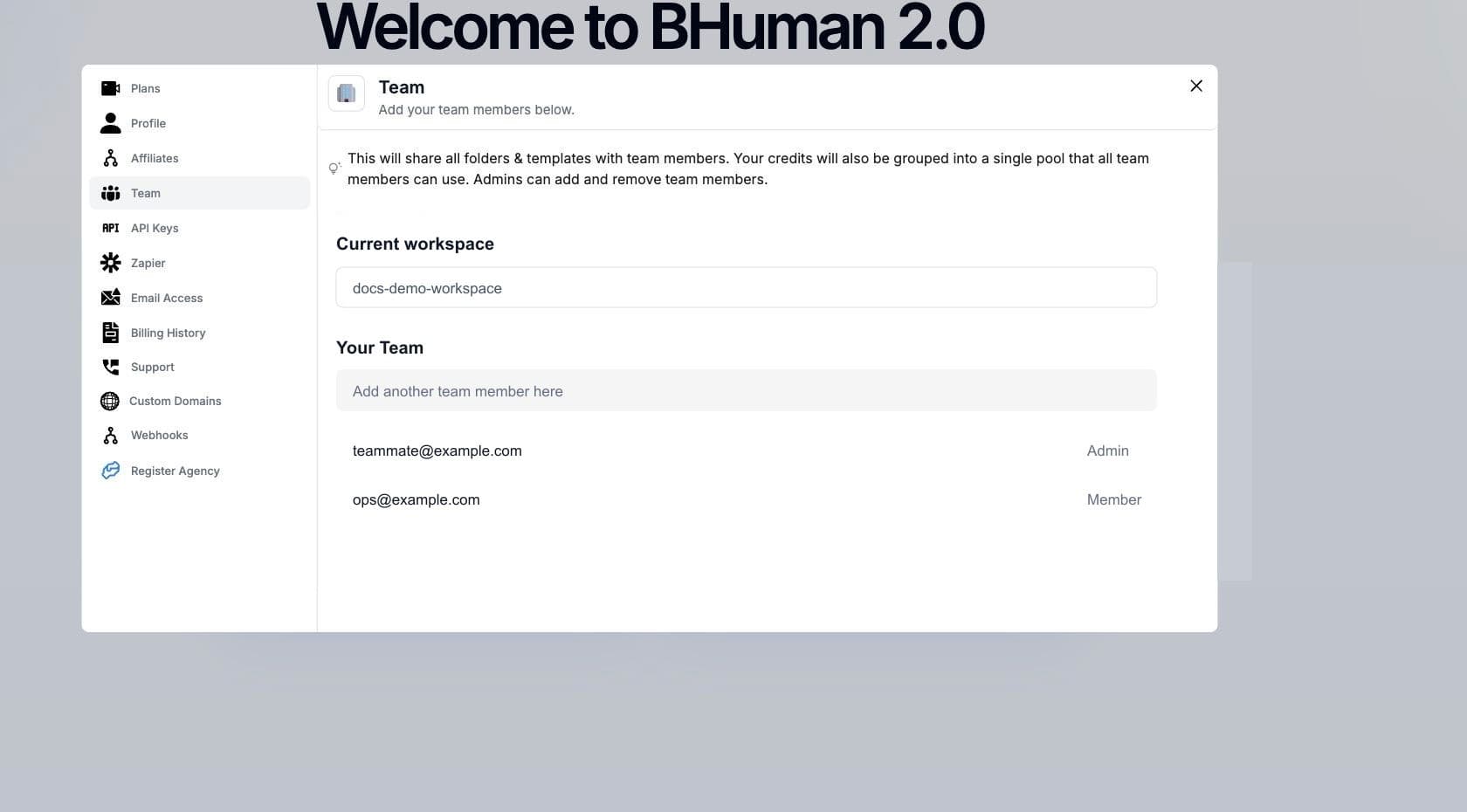
Model
How workspaces work
- Shared assets
- Folders and templates are shared with members in the selected workspace.
- Pooled credits
- Workspace members use a shared credit pool instead of isolated personal credits.
- Workspace selector
- The current workspace controls which templates, campaigns, quota, and team members are visible.
- Admin actions
- Admins can add and remove workspace members when their role allows it.
Workflow
Switch workspace
- 01
Open Team settings
Go to Settings and choose Team. - 02
Choose a workspace
Use the Current workspace selector to choose another workspace you can access. - 03
Refresh if needed
Use the refresh action if a newly added workspace is not visible yet. - 04
Reload into the workspace
BHuman updates the workspace token and reloads so the app uses the selected workspace.
Members
Add members
- Enter the team member's email address in the team member field.
- The email must be valid and registered with BHuman before it can be added.
- Press Enter or use the add action to invite the member into the current workspace.
- After the add completes, the member appears in the team list with their name and email.
Members
Remove members
- 01
Find the member
Review the Your Team list under the selected workspace. - 02
Use remove
Choose the remove action on the member row. - 03
Wait for refresh
The list refreshes after the member is removed.
Owner permissions
If removal fails, confirm that the signed-in user owns or administers the workspace.
Validation
Access rules
- A user already in the workspace cannot be added twice.
- Workspace switching requires access to that workspace token.
- Unregistered email addresses cannot be added as members.
- When access is denied, stay in the current workspace and ask the owner to update permissions.