AI Studio
Add a source video by recording or uploading.
Every personalized video template starts with a source video. Recording and upload are the two direct AI Studio paths; Speakeasy import, community templates, and text-to-video are available from the broader new template flow.
Options
Source options
- Record in BHuman
- Use the browser camera and microphone. Script notes stay beside the recorder while you record.
- Upload a video
- Use an existing recording. The browser recorder does not open, and the uploaded video becomes the template source.
- Import from Speakeasy
- Generate a presenter video in Speakeasy, then import it into AI Studio for personalization.
- Community template
- Start from a reusable template library entry, then edit variables and campaign settings in your workspace.
- Text-to-video
- Generate a presenter video from script text when the source should be created without recording a camera take.
Recorder
Record in BHuman
- 01
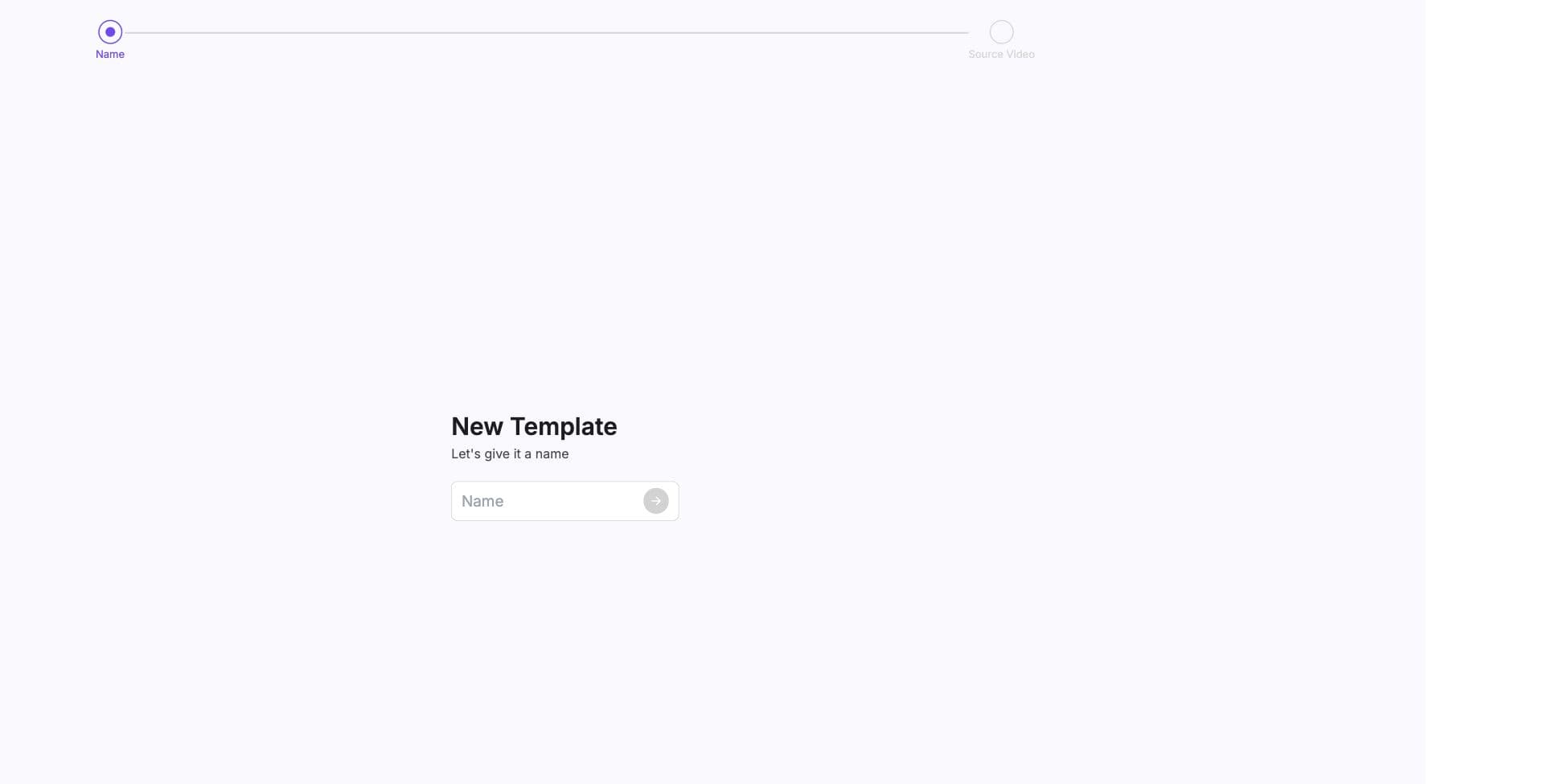
Name the template
Give the source video a recognizable name before choosing the video source. - 02
Choose Record in BHuman
Allow camera and microphone access, then record the base take. - 03
Keep variable phrases short
Variable phrases should be short and clearly paused around, such as a name or company phrase. - 04
Continue to transcript and samples
After recording, BHuman can transcribe, mark variables, and generate preview samples.
Upload
Upload a video
Upload mode is best when the recording was created outside BHuman or when a team has an approved production take. After upload, the rest of the setup flow is the same: transcript, variables, voice settings, preview samples, and campaign launch.
Quality
Recording tips
- Record in soft, even lighting.
- Stay several feet from the camera so the face is not too close to the frame.
- Use a clear resolution and stable camera position.
- Keep your head still during variable phrases.
- Use short variable phrases and pause around them.
Why distance matters
AI Studio checks face size for sample generation. If the face is too close, the app may ask you to select a safer preview mode before rendering.
Next