Account settings
Connect the mailbox BHuman sends from.
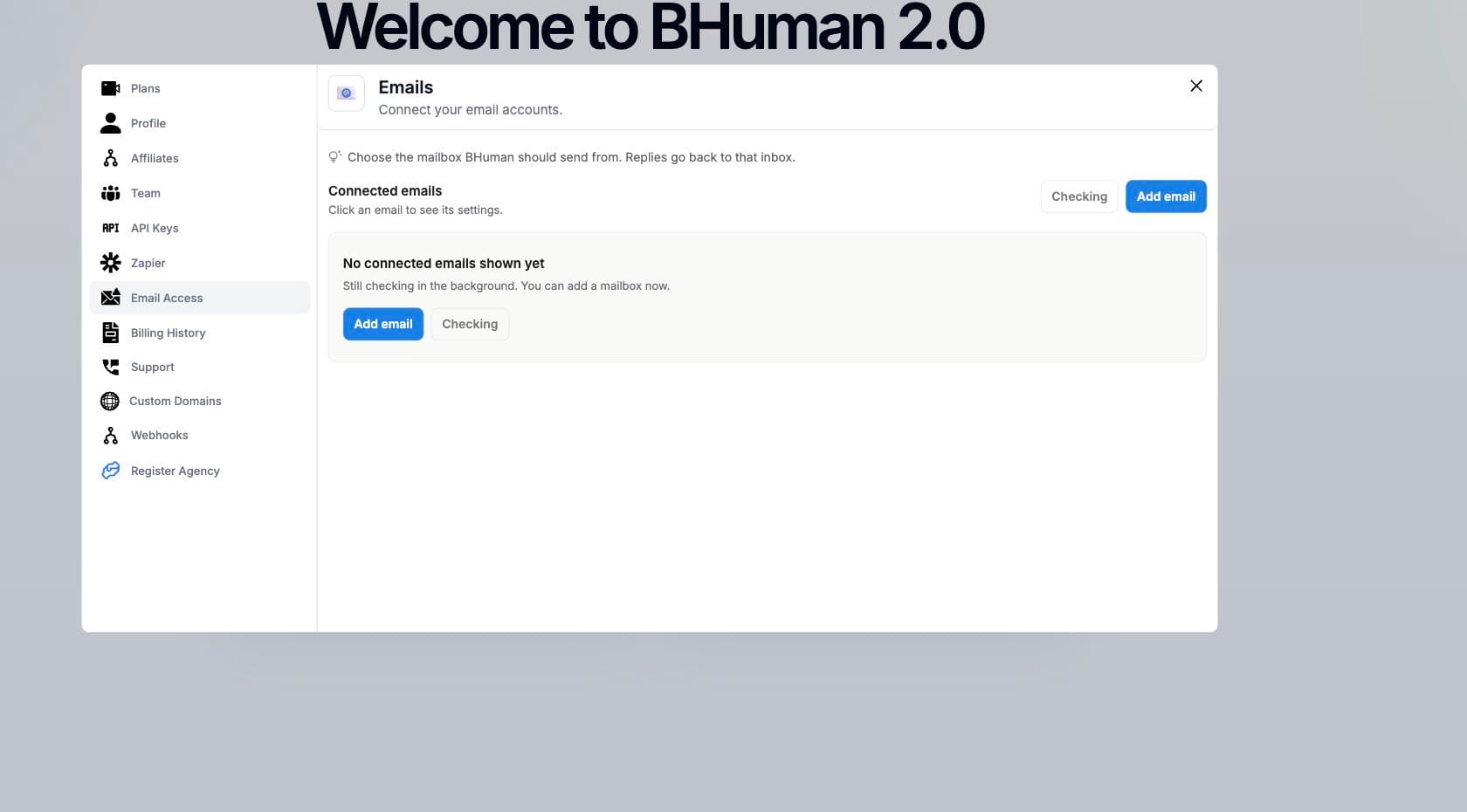
Email Access stores campaign senders. BHuman sends through the connected mailbox, and replies go back to the same inbox or reply-to address.
Model
What email access does
- Sender
- A mailbox BHuman can use to send generated video campaign emails.
- From email
- The email address recipients see as the sender.
- Reply-to email
- The inbox that receives recipient replies.
- Confirmation state
- Connected senders can show whether the connection is confirmed or needs attention.
Options
Sender types
- Gmail app password
- Use this when sending from Gmail with an app password generated from the Google account.
- Custom SMTP / IMAP
- Use this when connecting another mailbox provider with SMTP and IMAP server settings.
Gmail
Connect Gmail
- 01
Choose Gmail app password
Open Email Access and select Gmail app password. - 02
Enter sender details
Add sender name, From email, Reply-to email, and the Gmail app password. - 03
Save the sender
Submit the form and wait for the connected sender to appear. - 04
Use in campaigns
Choose the sender in Email Delivery when launching a campaign.
Gmail passwords
Use a Gmail app password, not the normal Google account password.
Custom mailbox
Connect SMTP and IMAP
- Choose Custom SMTP / IMAP.
- Enter sender name, From email, and Reply-to email.
- Enter SMTP host, port, username, password, and secure setting.
- Enter IMAP host, port, username, password, and secure setting.
- Save the sender, then refresh the connected email list if it does not appear immediately.
Operations
Manage senders
- Use Refresh to reload connected senders.
- Remove a sender when BHuman should no longer use that mailbox.
- If a sender needs attention, verify credentials and provider settings.
- Keep sender settings separate from Profile settings; Email Access does not change the account login email.