Speakeasy
Create generated presenter videos in a project workspace.
Speakeasy is BHuman's generated presenter workspace. Use it to create a presenter, choose how narration is made, write or upload the script/audio, render the final video, then use the result directly or import it into AI Studio for personalization.
Purpose
What Speakeasy is
Speakeasy creates the base presenter video. AI Studio handles per-recipient personalization after the base video is ready.
- Use Speakeasy
- When the presenter, voice, or narration should be generated before the video becomes a reusable asset.
- Use AI Studio
- When a finished recording or Speakeasy render needs variables, campaign rows, API generation, callbacks, thumbnails, GIFs, email, SMS, Leadr, Zapier, or Pabbly.
- Use directly
- When the finished video is a one-off asset that only needs preview, open, download, or social sharing.
Workspace
Workspace model
- Project sidebar
- Create projects, search saved projects, select an existing project, and review each project's status and preview thumbnail.
- Project title
- Rename the active project from the workspace header so generated assets stay recognizable.
- Preview mode
- Signed-out users can explore the builder, but signing in is required to save custom presenters, save projects, and start renders.
- Credits badge
- Authenticated users see remaining render credits in the header. Low or unavailable credits are shown as status badges.
- Settings
- Settings includes plan selection, Stripe billing management, promo code entry, and invite-code credit redemption.
Workflow
Creation workflow
- 01
Choose your presenter
Select a stock or saved presenter, upload a presenter photo, capture one from webcam, or describe an AI presenter to generate. - 02
Create a voice profile
Choose whether Speakeasy should design an AI voice, clone a voice from a sample, or use final narration audio that you upload or record. - 03
Write script and preview voice
Generate a draft from a prompt and optional target duration, edit the script, tune delivery, then create or regenerate the voice preview. - 04
Confirm the render plan
Speakeasy renders the finished presenter video after the presenter, script, and voice are ready. - 05
Start generation
Start the render, monitor progress, refresh status, retry failed renders, then preview, open, download, share, or import the final video.
Features
Feature map
- Presenter library with stock presenters, saved presenters, search, category filters, delete confirmation, and fallback previews.
- Custom presenter paths for image upload, webcam capture, and AI-generated presenter creation with progress, cancel, and retry states.
- Voice modes for designed AI voice, cloned voice sample, and final uploaded narration audio.
- Script generation with prompt, target duration, editable script, minimum script length, and stale preview warnings.
- Voice tuning controls for feedback, speed, stability, similarity, style, speaker boost, and subtle ambience.
- Render monitoring with job ID, stage labels, progress percentage, ETA, refresh, retry, and email notification copy.
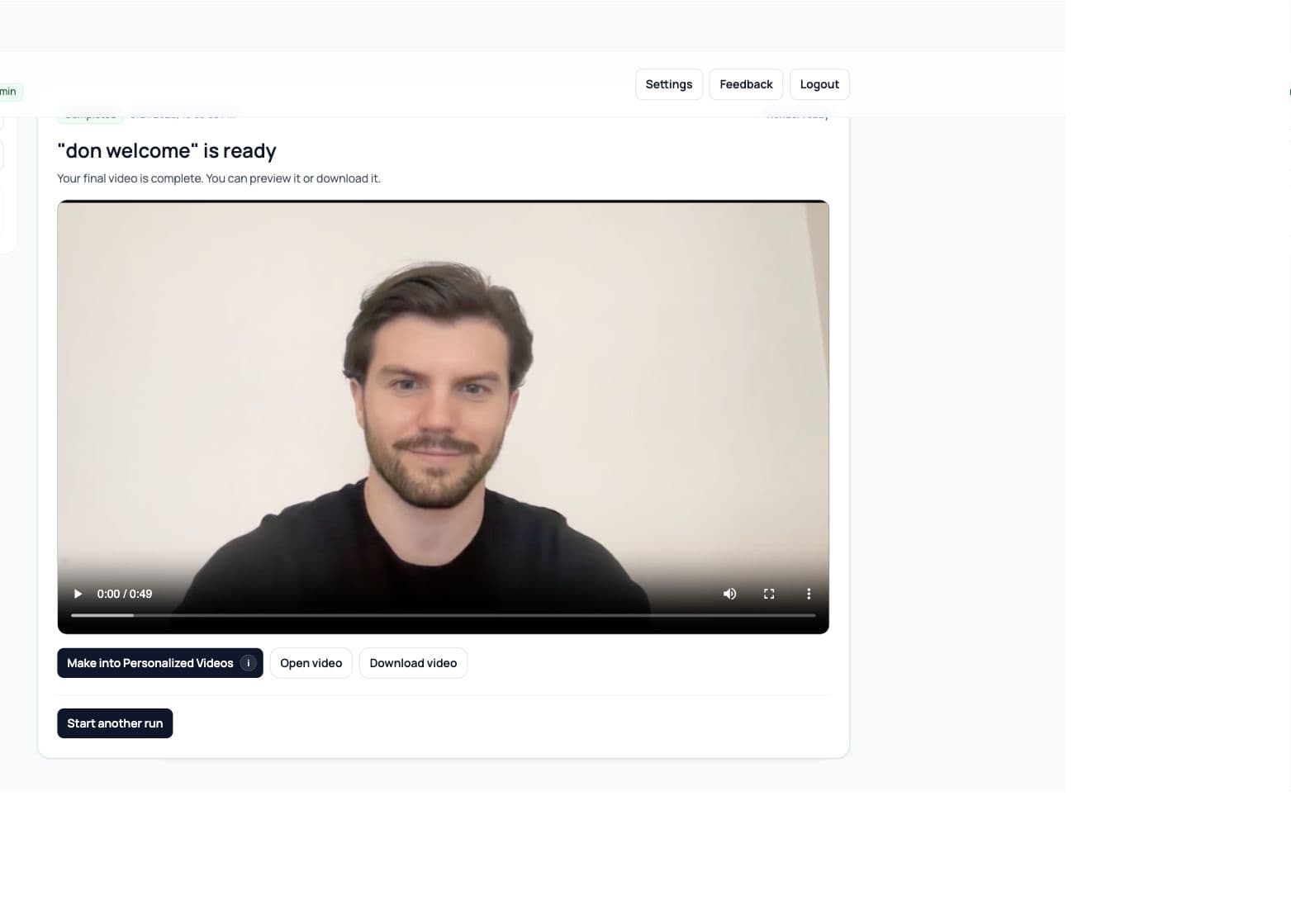
- Completed video actions for preview, open, download, start another run, and Make into Personalized Videos.
- Optional sharing flow for connected social channels when the workspace is configured for Postiz.
- In-app feedback and roadmap panel for feature requests, bugs, voting, and tracking your submissions.
Handoff
AI Studio handoff
- 01
Finish the Speakeasy render
The completed project needs a final video URL before AI Studio can turn it into a reusable personalized template. - 02
Choose Make into Personalized Videos
This opens AI Studio with the finished Speakeasy video and project context. - 03
Prepare the template in AI Studio
Review transcript text, mark variables, configure timing and voice behavior, then generate previews before campaign launch.
Next
Where to go next
Projects and presentersSet up projects, presenter library choices, uploads, webcam capture, and AI-generated presenters.Script and voiceChoose the narration path, draft scripts, clone voice samples, and tune previews.Rendering and sharingMonitor render progress, recover from failures, download video, and connect sharing channels.AI Studio setupPrepare imported Speakeasy videos for personalization.