AI Studio
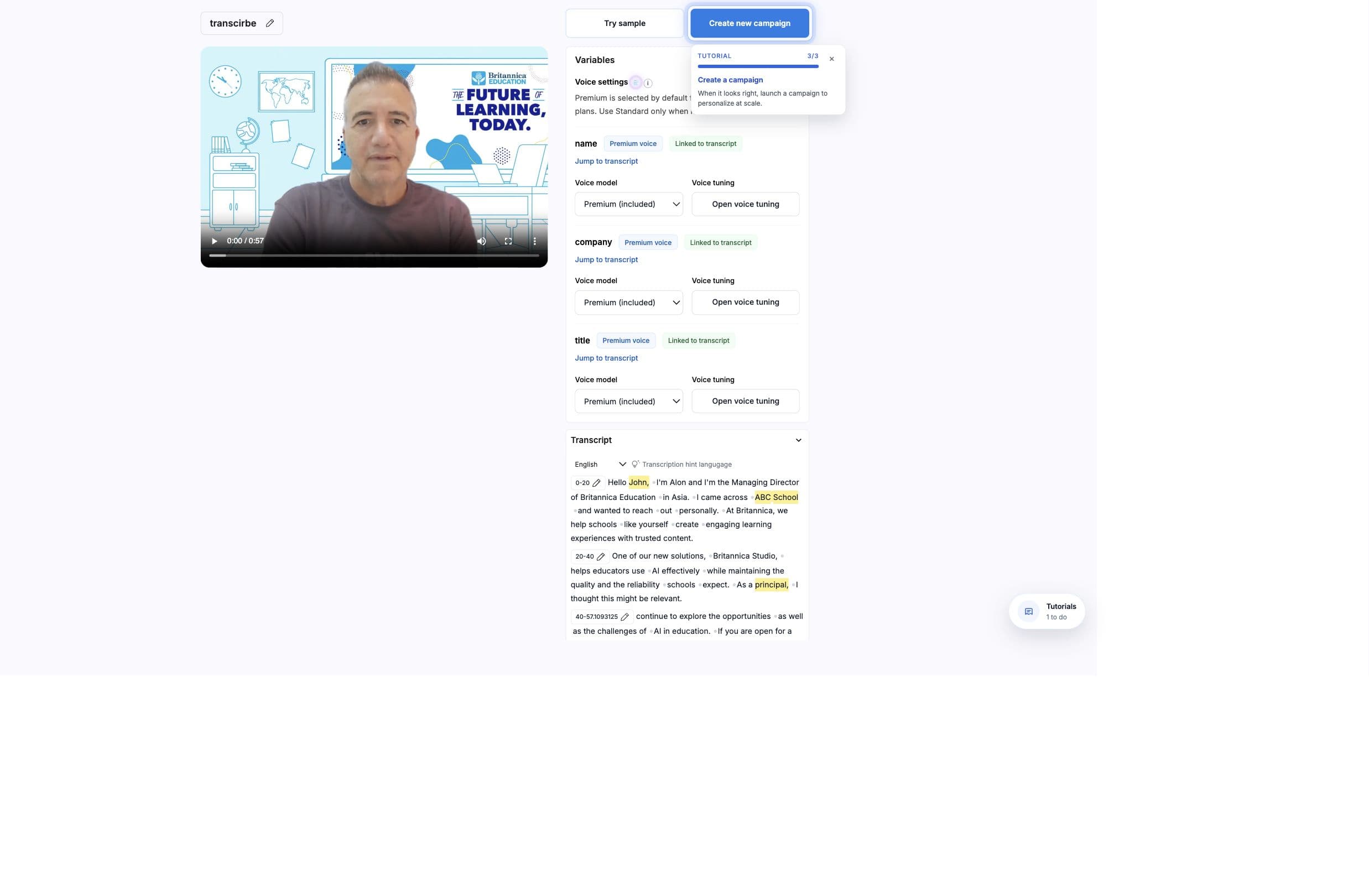
Mark personalized words directly in the transcript.
The transcript editor turns selected transcript words into variables. Those variables become the fields campaigns, API calls, Zapier, Pabbly, and Leadr map later.
Model
How it works
AI Studio aligns the source video to transcript words, caches usable transcript data by template and video URL, and lets you select a word range from the transcript. The selected range becomes a variable segment stored on the template.
Workflow
Create variables
- 01
Open the transcript
Wait for transcription to finish. If the video came from Speakeasy, the imported script can seed the transcript. - 02
Select the words that should change
Highlight the exact word or phrase in the transcript. - 03
Name the variable
Use direct names such as name, company, product, cta_url, or website_url. - 04
Save and review
The variable appears in the template and can be mapped in campaign rows.
Rules
Validation
- A variable name is required before saving.
- Variables cannot overlap inside the same pause-separated range.
- A duplicate variable name replaces the previous variable definition.
- Very old variables may not display in the transcript and should be reset or recreated.
- Variables can be deleted from the transcript toolbar.
Use short phrases
Short variable ranges make voice replacement and lip sync more natural. Avoid marking long clauses when a single word or short phrase is enough.
Language
Language and cache
- Language selection
- The editor includes language controls for transcription where supported.
- Transcript cache
- BHuman caches transcript data for the template and video URL so users do not need to repeat alignment work unnecessarily.
- Speakeasy seed
- Imported Speakeasy script text can seed transcript segments before alignment.
Next