Speakeasy
Write the script and create the narration.
Speakeasy supports three narration paths: design an AI voice, clone from a sample, or upload finished audio. Script and voice previews must match the final words before rendering starts.
Voice profile
Voice profile modes
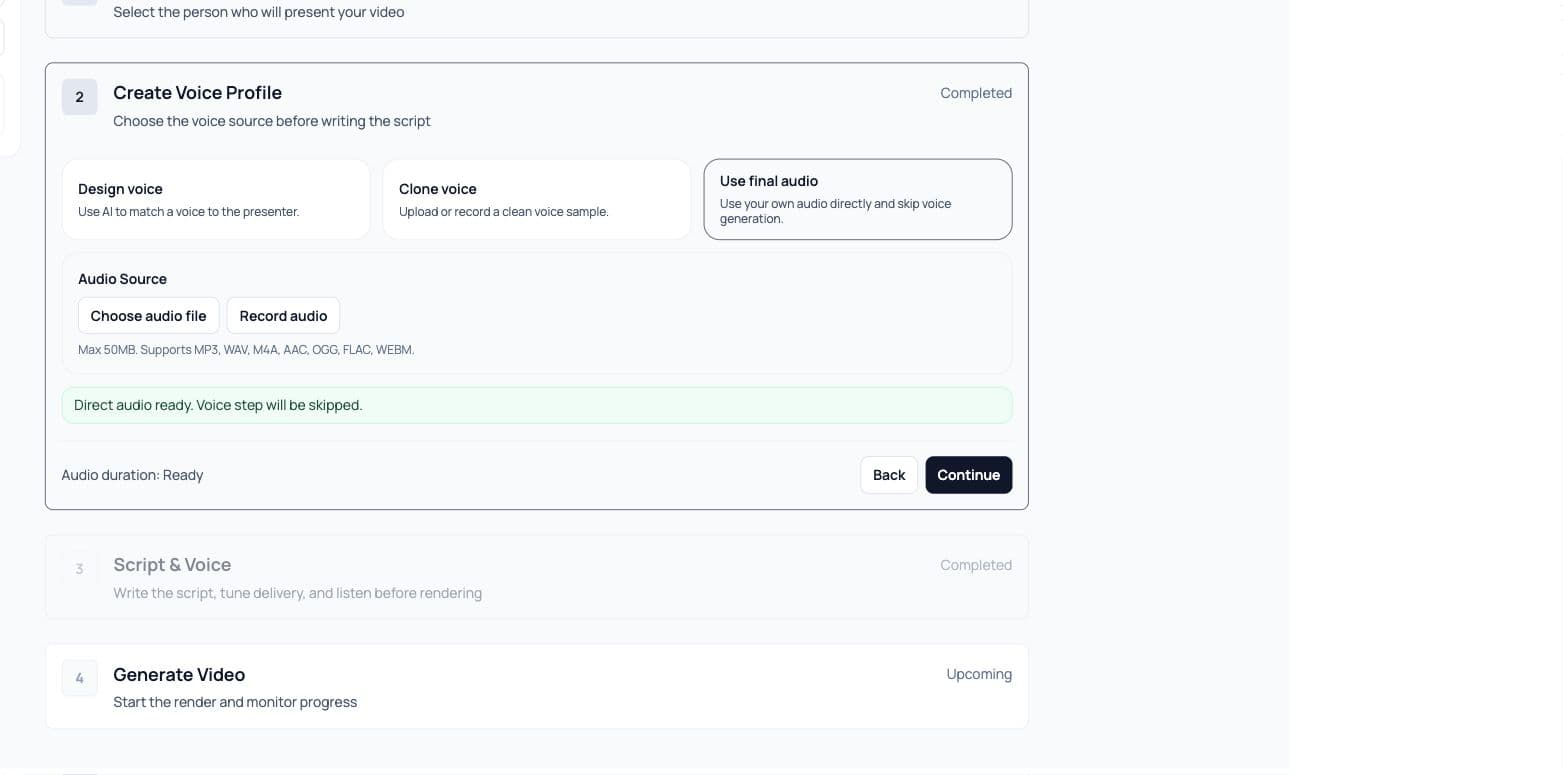
- Design AI voice
- Speakeasy creates a voice profile from a written voice description. Use this when a generated voice is acceptable or preferred.
- Clone from sample
- Upload or record a clean voice sample before writing the final script. Add an optional reference transcript and style instruction for better matching.
- Use final audio
- Upload or record finished narration. This skips the Script & Voice step because the final audio is already supplied.
Script
Script workflow
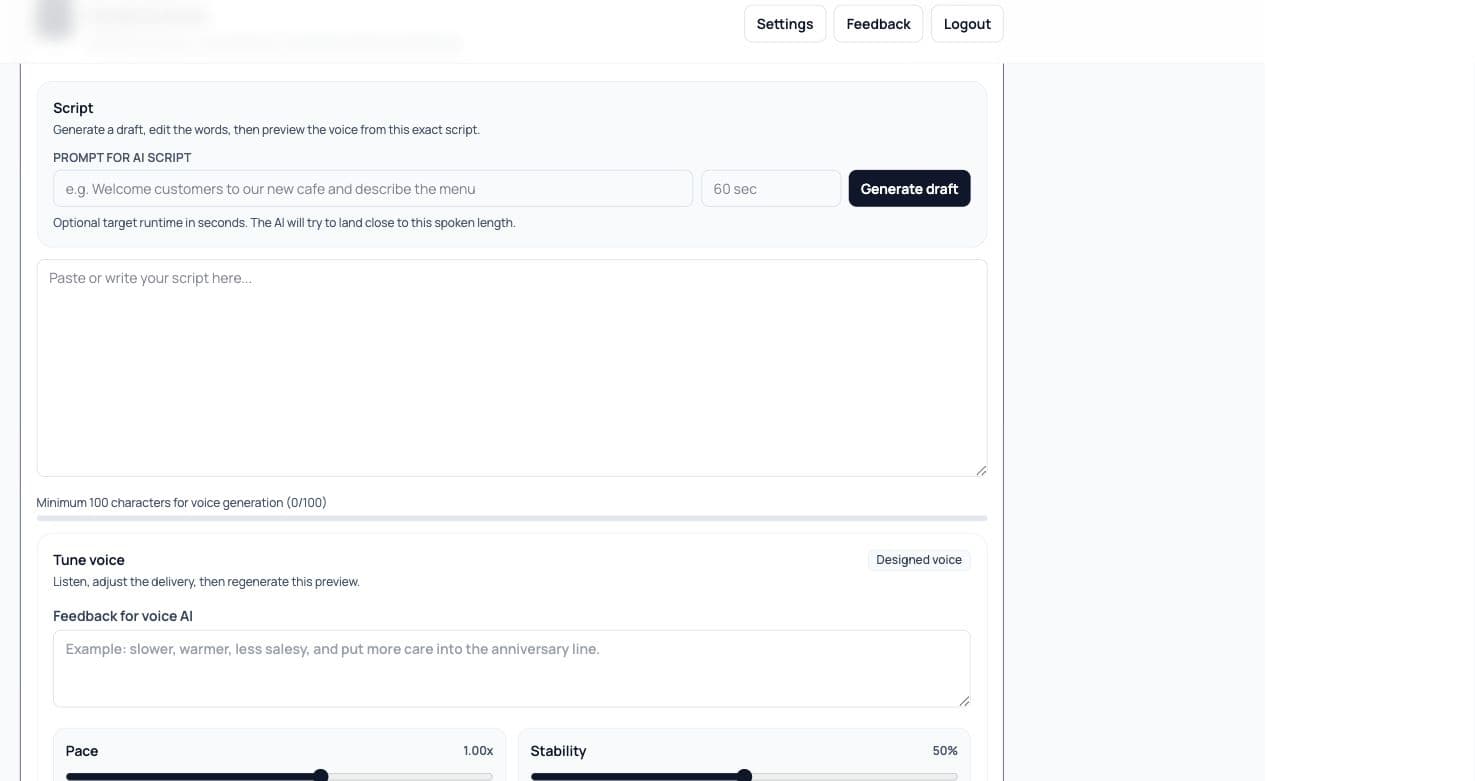
- 01
Add a prompt
Describe what the presenter should say. Add an optional target runtime in seconds when the script needs to fit a specific length. - 02
Generate or paste the script
Generate a draft, paste your own script, or edit the AI draft directly in the script editor. - 03
Meet the minimum length
The live builder requires enough script text before voice generation is available. - 04
Preview the voice
Create the voice preview from the exact script and settings you plan to render.
Design
Designed voice
- Use Analyze presenter voice when you want Speakeasy to suggest a voice profile from the selected presenter.
- Edit the base voice description with tone, pace, accent hints, and delivery style.
- Use feedback when regenerating, such as slower, warmer, less salesy, or more direct.
- Tune speed, stability, similarity, and style before regenerating the preview.
- Use speaker boost when the voice should keep extra clarity and presence.
- Use subtle ambience only when background sound helps the video feel natural.
Preview snippets
Some designed-voice previews may use the opening lines first. The full script voice is finalized when rendering starts.
Clone
Cloned voice
- Upload sample
- Choose a clean audio file. A single speaker, low background noise, and steady volume produce better clone previews.
- Record sample
- Record directly in the browser. The live UI shows recording time and asks for at least 15 seconds for clone samples.
- Reference transcript
- Optional but recommended. Paste what is said in the reference audio so the clone can align to the sample.
- Style instruction
- Optional guidance such as warm, conversational, steady pace, or more energetic.
Audio
Use final audio
Use final audio when the narration is already recorded, approved, and should not be regenerated. This mode accepts common audio formats, previews the selected file, uploads it, and skips the Script & Voice step.
- Supported upload types include MP3, WAV, M4A, AAC, OGG, FLAC, and WEBM.
- You can upload an audio file or record audio in the browser.
- After final audio is uploaded, the render uses that audio directly.
- Use this path for approved voiceover, podcast-style narration, or externally produced audio.
Preview
Preview rules
- Out-of-date preview
- If the script, voice feedback, or tuning settings change after a preview is generated, regenerate before rendering.
- Save voice and continue
- For designed voices, save the generated voice preview before moving to render planning.
- Regenerate preview
- Regenerate whenever the delivery does not match the final script or intended tone.
- Direct audio
- Direct final audio marks the voice step complete without generating a new voice preview.