AI Studio
Choose natural voice output and control variable timing.
Voice and lip sync settings decide how personalized words sound, how presenter mouth movement is handled, and how variables fit into the original video timing.
Model
What voice and lip sync controls
- Voice model
- The per-variable voice path. Standard is the default. Premium enables extra tuning for eligible plans.
- Voice config
- Saved per-variable settings such as model, stability, similarity, style, and speaker boost when premium voice is used.
- Generation mode
- Controls whether AI Studio optimizes for Best quality or preserves the original source video around variable lip sync.
- Lip sync
- A render option that updates mouth movement when generated variable audio changes.
- Manual timing
- A no-lipsync timing path where each variable has a start time and optional fit window.
Voice
Standard and premium voice
AI Studio shows voice settings per transcript variable. Each variable starts on Standard voice unless it is switched to Premium by an eligible user.
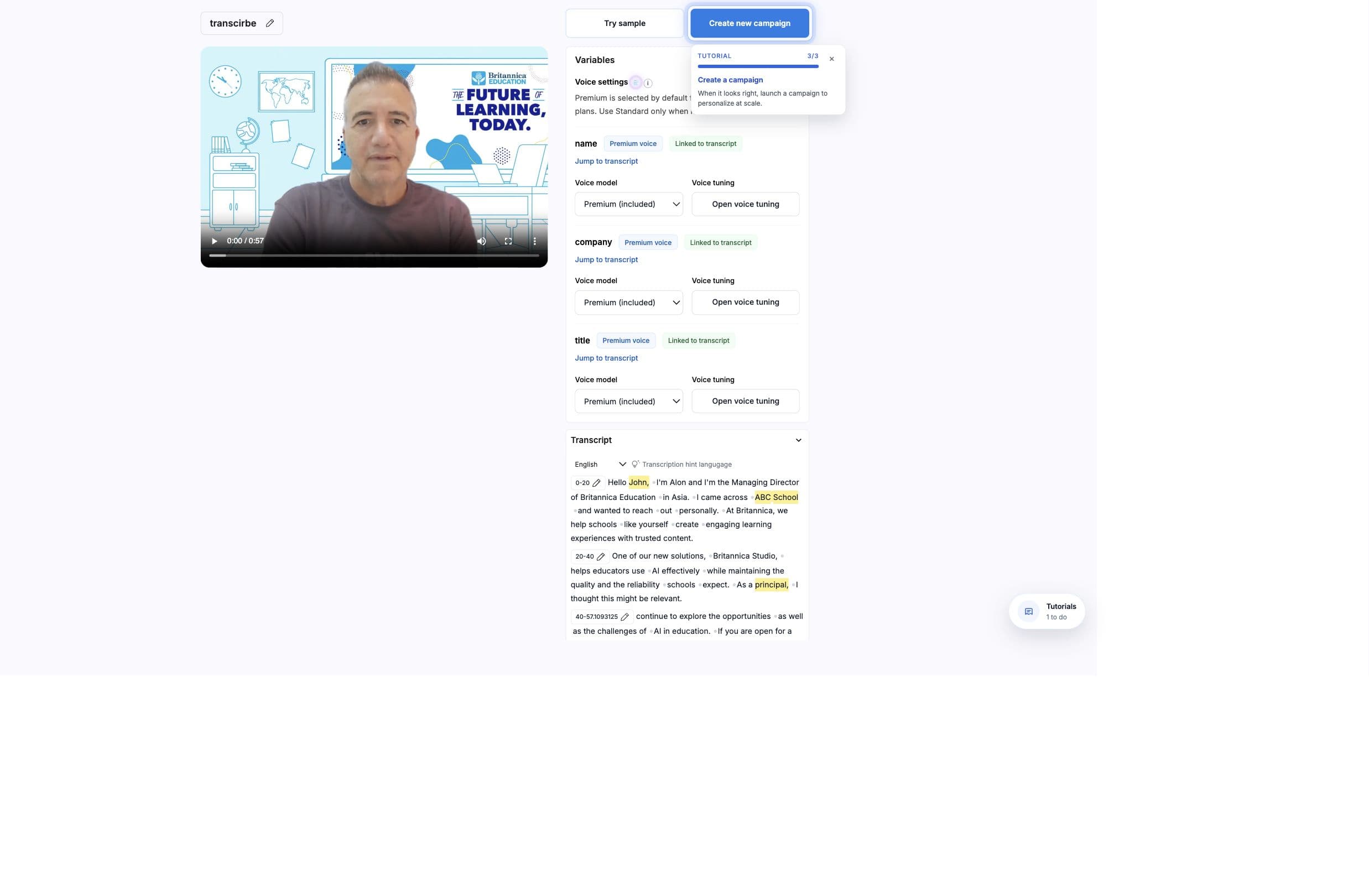
- Standard voice
- Default voice generation for variable phrases. Use this for most short variables.
- Premium voice
- Available on eligible plans. Enables voice tuning controls for variables that need more exact delivery.
- Voice tuning
- Used with premium voice to tune stability, similarity, style, and speaker boost for a variable.
- Manual recording
- Campaign-level option to record variable-specific audio instead of generating the phrase from voice cloning.
Generation
Generation modes
- Best quality
- The default current route. It favors the highest quality generation path for personalized output.
- Preserve source video
- Uses the variable lip sync path when a template needs to preserve more of the original source video around variables.
Use the simple default first
Start with Best quality unless a template specifically needs source preservation around variable phrases. Then test with samples before a campaign launch.
Lip sync
When to enable lip sync
- Enable lip sync when the presenter face is visible and variable audio changes mouth movement.
- Disable lip sync when the variable is off-camera, covered by background content, or already fits a fixed audio slot.
- Use shorter variables for more predictable facial and audio results.
- Test with several realistic values before using the template in a large campaign.
Manual timing can override lip sync
If every mapped variable has manual start timing, AI Studio can use the manual timing path instead of requesting lip sync for those variables.
Timing
Manual timing windows
Manual timing windows are useful when the source recording has a predictable pause and the personalized phrase should fit into a known time range.
- start seconds
- Where variable audio begins when lip sync is off.
- window end seconds
- Where the variable audio should finish when a fit window is set.
- anchor
- Whether the fit window is anchored from the left or right side.
- fit mode
- Whether the renderer can adjust audio speed, video timing, or both to fit the window.
Checks
Quality checks
- 01
Use realistic values
Test names, companies, product names, and phrases that match real campaign rows. - 02
Listen for pronunciation
Check uncommon names, acronyms, and brands before launching a full list. - 03
Watch mouth movement
Verify lip sync on close-up recordings and switch modes if the face movement looks unnatural. - 04
Check subtitle alignment
When subtitles are enabled, confirm the displayed words match the rendered variable audio.