Speakeasy
Manage projects and choose the presenter.
The first Speakeasy decision is the project container and the presenter identity. Choose an existing presenter, save a custom image, capture from webcam, or generate a presenter from a written description.
Presenter
Presenter options
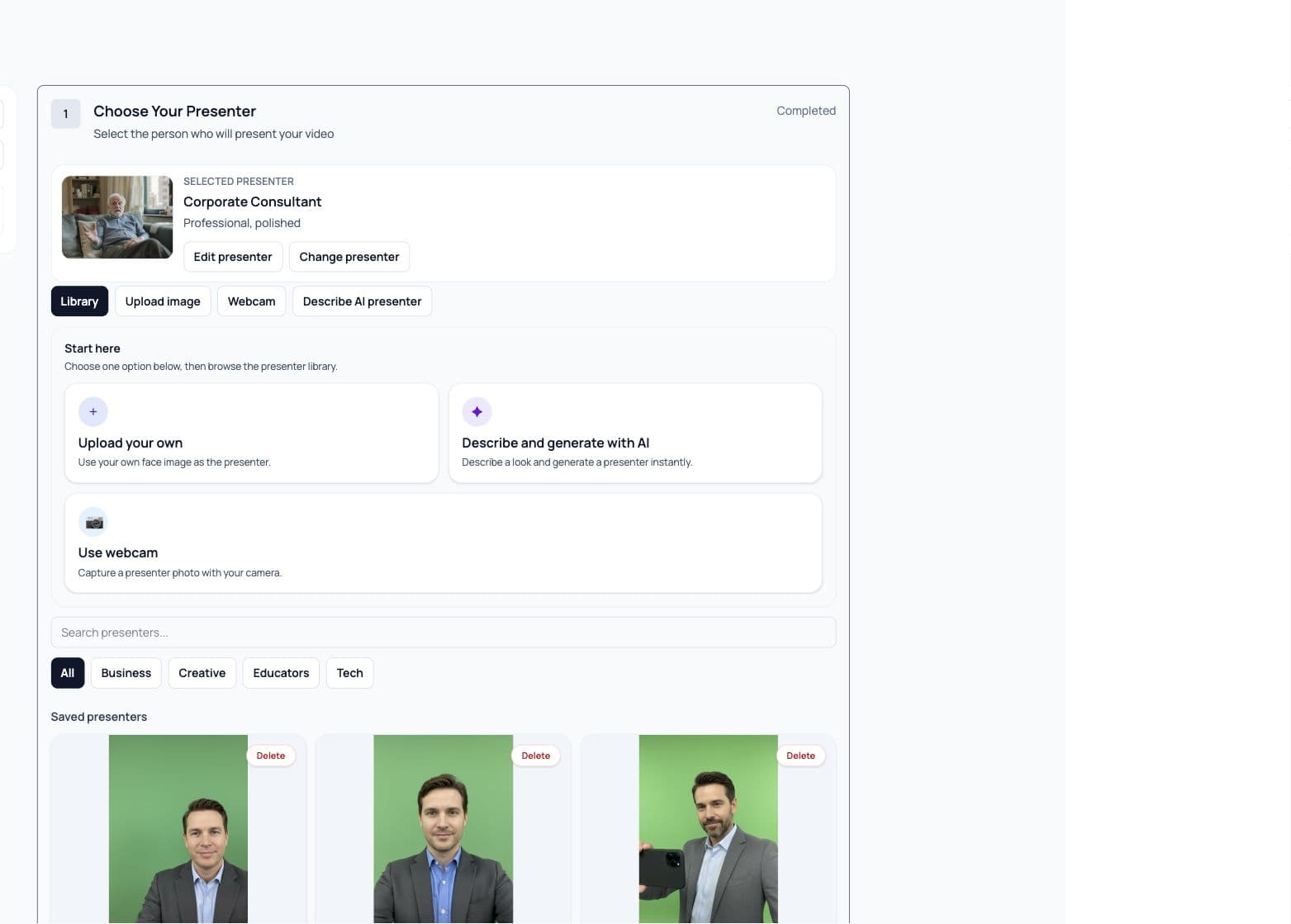
- Library
- Browse stock presenters and saved presenters. Filter by All, Business, Creative, Educators, or Tech, and search by name or description.
- Saved presenters
- Authenticated accounts can save custom presenters and reuse them across projects. Saved presenters can be deleted without changing projects that already used the image.
- Stock presenters
- Stock presenters provide a fast starting point when a custom face is not required.
- Upload photo
- Upload a clear image with one face. Speakeasy automatically compresses oversized images before saving.
- Webcam
- Capture a presenter photo in the browser, retake it if needed, and save it as the project presenter.
- Describe AI presenter
- Describe age, look, clothing, expression, and environment. Speakeasy generates a presenter image, then saves it to the presenter library.
Custom
Create a custom presenter
- 01
Choose the creation mode
Use Upload photo for an existing image, Webcam for a browser capture, or Describe AI presenter for a generated presenter. - 02
Check the preview
Confirm the face is clear and centered. For webcam captures, retake the photo before saving if the image is blurry or cropped. - 03
Add optional metadata
Use name and description fields so the presenter is easy to search and reuse. - 04
Save and continue
After the presenter is selected, Speakeasy moves to voice profile and script setup.
- Use one visible face.
- Avoid extreme side angles or heavy occlusion.
- Use a clean, believable environment when generating a presenter with AI.
- If webcam or microphone permission is denied, allow access in the browser or use upload instead.
Editing
Changing presenters after work has started
Changing the presenter after script or voice work has started keeps the script, but clears generated voice settings and preview audio. This prevents a voice preview created for one presenter from being reused with a different face.
What is preserved
The script is preserved. Voice settings and generated preview audio are reset so the next preview matches the selected presenter.
Troubleshooting
Troubleshooting
- Webcam not found
- Check browser permissions and device settings, then restart webcam. If the camera is busy, close other apps or upload a photo.
- Upload rejected
- Use a supported image file with a clear single face. Large images are compressed automatically, but invalid files are rejected.
- AI generation failed
- Retry generation with a more concrete description. Include subject, clothing, expression, and environment.
- Presenter image missing
- The project falls back through available preview candidates. Reopen the presenter step and reselect or recreate the presenter if needed.