Browse documentation
Integrations
BHuman videos in GoHighLevel
Generate a personalized video for each contact and email a clickable GIF thumbnail.
Before you start
- An AI Studio campaign ready to generate videos.
- BHuman API credentials and generation credits.
- A GHL sub-account with Custom Webhook actions.
- A configured GHL email sending service. GHL action and email charges may apply.
Wait until the video is ready
succeeded and the output URLs are available. Each new request creates another video.1. Prepare your BHuman campaign
- In AI Studio, open the campaign you want to personalize.
- Choose Select data source, then GoHighLevel. Copy your campaign payload and campaign ID.
- Check the variable names in your payload. The example below uses name and conference; replace them with your campaign's exact keys.
- Open BHuman Settings > API keys and copy your Client ID and Client Secret. Keep the secret in GHL's secure credential store.
The example uses keep_original, which changes the personalized sections of your existing recording. Send replacement values for those sections, such as a first name. Keep fixed words already spoken in the template out of the replacement value.
2. Add contact fields and a test trigger
In GHL Settings > Custom Fields, create these fields on the Contact object. Our example keeps them in the Automation folder.
- BHuman Video URL
- Single line. Stores the hosted viewing link. Token:
{{contact.bhuman_video_url}}. - BHuman GIF URL
- Single line. Stores the animated thumbnail URL. Token:
{{contact.bhuman_gif_url}}. - BHuman Poll Attempts
- Number. Tracks the first status check in this example. Token:
{{contact.bhuman_poll_attempts}}.
Open Automation > Workflows and create a blank workflow. Add a Contact Tag trigger with Tag added set to bhuman-ghl-proof. Put an If/Else action first: allow only the email address of your own test contact, and end the other branch. Keep re-entry off for a one-video-per-contact workflow.
Use GHL's variable picker to confirm the actual tokens for your fields. Renamed or previously created fields can have different keys.
3. Request one personalized video
In the allowed test-contact branch, add Custom Webhook and name it Generate BHuman personalized video.
- Event and method
- CUSTOM, with method POST.
- Authorization
- Basic Auth. Username is your BHuman Client ID; password is your securely saved Client Secret.
- Content-Type
- application/json
- Save response
- Enable Save response from this Webhook. Later actions need its returned ID.
Generation endpoint
https://studio.bhuman.ai/api/ai_studio/pipeline/pabbly
Generation request body
{
  "campaign_id": "YOUR_CAMPAIGN_ID",
  "generation_mode": "keep_original",
  "variables": {
    "name": "{{contact.first_name}}",
    "conference": "GoHighLevel demo"
  }
}
Replace YOUR_CAMPAIGN_ID and the variable keys with values from your own campaign. Use Send test request once with your test contact to populate GHL's response schema. This starts a real render and uses generation credits.
Accepted response
{"result":["GENERATED_VIDEO_ID"],"code":200}Test status checks with the existing ID
4. Check the same video for completion
- 01
Initialize the counter
Add Update contact field and set BHuman Poll Attempts to 0. - 02
Wait before the first check
Add a Wait action for 10 minutes. - 03
Extract the returned ID
Add Array Formatter. Choose Find by index, select the generation webhook's Response > Result array, and use index 0. - 04
Read the video status
Add another Custom Webhook. Use event GET, authorization None, and enable Save response.
Status-check URL
https://studio.bhuman.ai/api/ai_studio/generated_video_by_id?id={{array_functions.[1]}}In our workflow, the Array Formatter output token is {{array_functions.[1]}}. Use the picker for the correct formatter in your workflow. The generation result is an array: passing the whole array as the ID will not work.
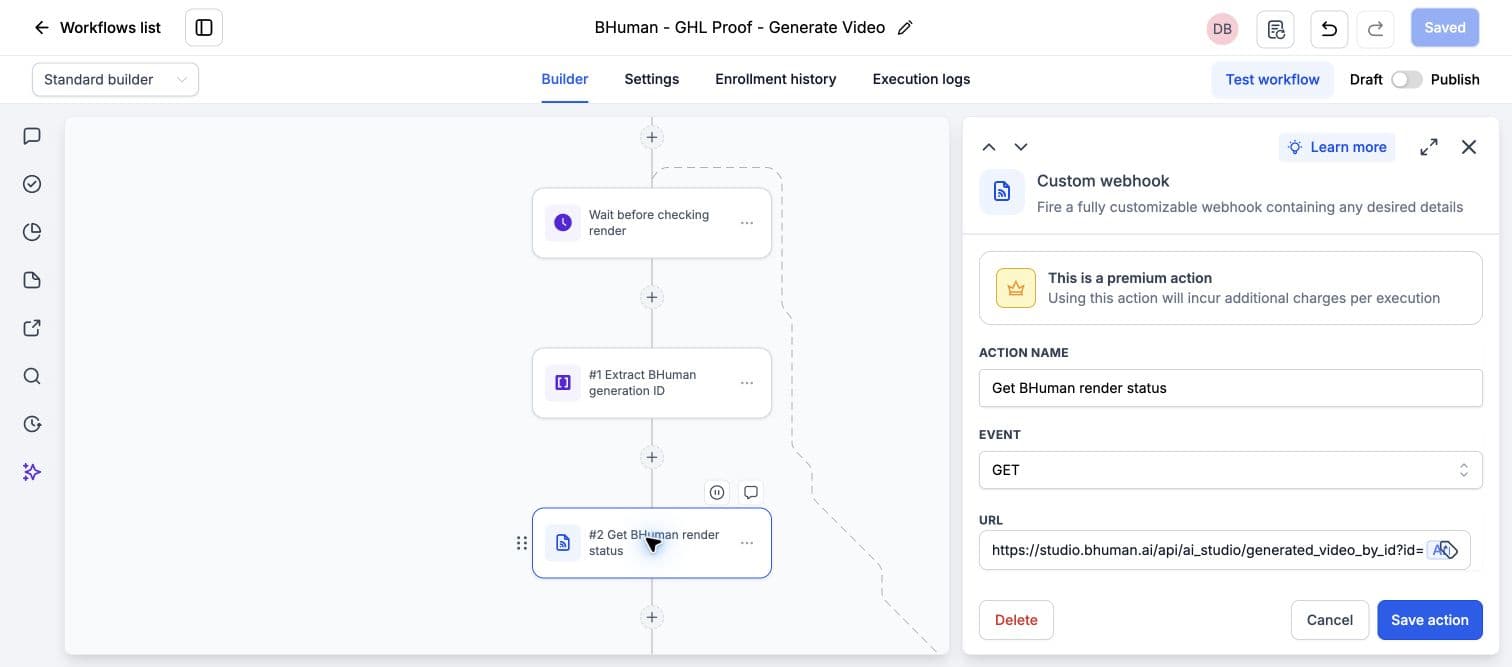
To populate the GET response schema, temporarily replace the dynamic token with the existing generated ID and send a test request. Restore the dynamic token before running the full workflow. Repeat this schema setup for the final GET action described below.
Add a Math operation after the GET: choose BHuman Poll Attempts, add 1, and save the result back to the same contact field.
Add the readiness branches
- Video ready
- First branch:
result.statusissucceededANDresult.share_urlis not empty. Continue to save the outputs and email. - Retry render
- Second branch: status is not
failedAND BHuman Poll Attempts is less than 20. Use Go To at the end of this branch to join the final-check Wait action. - None branch
- In the tested layout, this contains the final-check sequence: Wait 20 minutes, a second GET for the same video ID, and another readiness condition.
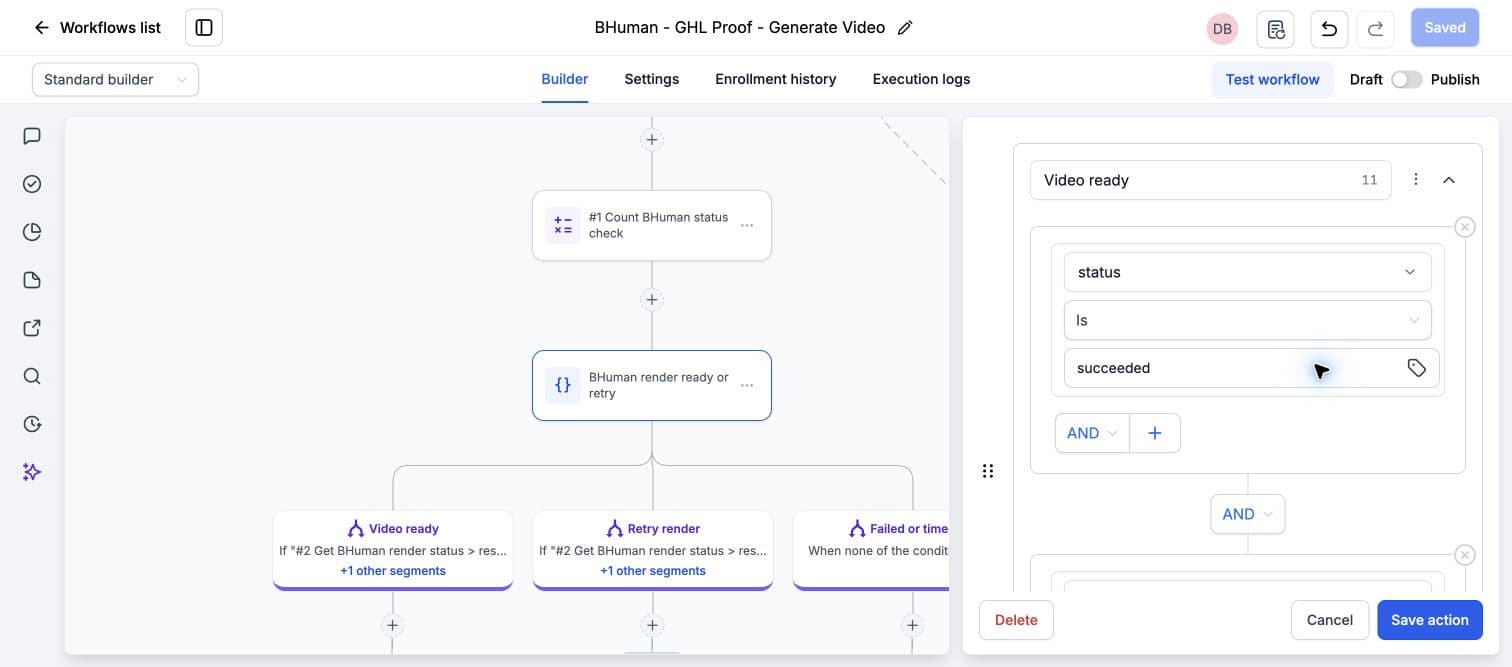
Name the final GET Final BHuman render status. It uses the same dynamic URL, authorization None, and Save response. After it, add an If/Else action requiring succeeded and a nonempty share_url from that final response. End its None branch. On success, save the outputs and use Go To to join the existing email action.
Two forward checks, with no polling loop
5. Save the viewing link and GIF on the contact
On each successful branch, use one Update contact field action to save both outputs from that branch's status response. The first GET is webhook #2 and the final GET is webhook #3 in our example. Use the variable picker if your numbering differs.
First ready branch contact mappings
BHuman Video URL = {{custom_webhook.2.response.result.share_url}}
BHuman GIF URL = {{custom_webhook.2.response.result.gif}}
Final ready branch contact mappings
BHuman Video URL = {{custom_webhook.3.response.result.share_url}}
BHuman GIF URL = {{custom_webhook.3.response.result.gif}}
Use gif for the animated preview. The separate thumbnail field is a still image. Both branches must save the GIF and viewing link before joining the same email action. Never use a fixed preview URL for every contact.
6. Send a clickable GIF thumbnail email
Add Send email, configure your sender, and choose Quick compose. Write a short greeting and invitation to watch. Place the cursor below that text, then click Add Image and enter these values.
- Image URL
{{contact.bhuman_gif_url}}- Width and height
- 240 px wide with height Auto for the portrait video in this example. Choose a suitable width for your own video's aspect ratio.
- Alt Text
- Watch your personalized video
- Image Action Link
{{contact.bhuman_video_url}}- Open Link In
- A new window.
Under the image, add a text link labeled Watch your video and link it to {{contact.bhuman_video_url}}. This keeps a usable viewing link when an email client blocks images.
Example email copy
Hi {{contact.first_name}},

Your personalized BHuman video is ready. Click the thumbnail below to watch.

[Add the linked GIF image here]

Watch your video

Your name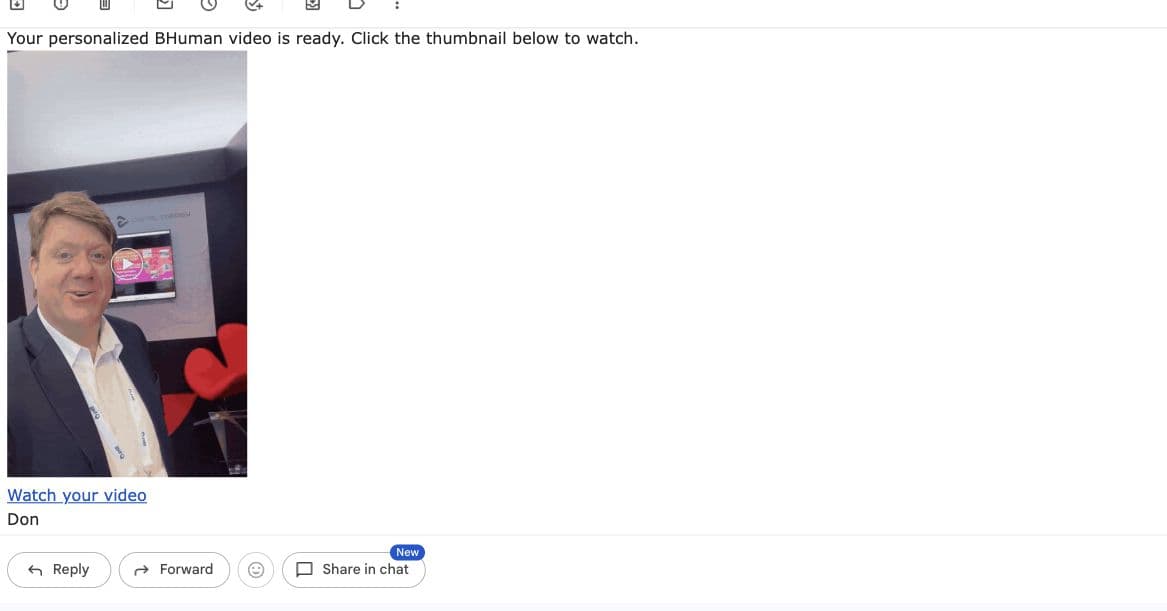
7. Test the workflow
- Fill in your own test contact's first name and required campaign fields.
- Restore the dynamic Array Formatter result in both status URLs after schema testing.
- Save and publish, then add the trigger tag to your test contact. A tag already on the contact will not trigger enrollment.
- Confirm that the contact's viewing link and GIF URL are saved before the email sends.
- Open the email, check the GIF, click through, and play the video. Check the sender and spam folder.
- Keep the test-contact email guard while configuring, and return to Draft if needed. Remove the guard when ready to enroll your intended contacts.
Troubleshooting
Show common problems and fixes
- 401 or 403
- Recheck Basic Auth, API access, Client ID, and the securely saved Client Secret.
- 400 or invalid payload
- Confirm the campaign ID and exact variable keys. Send only the replacement values your template expects.
- Missing video ID
- Enable Save response on the generation webhook, populate its schema, and extract result index 0 using Array Formatter.
- Blank or wrong GIF
- Use result.gif from the completed status response, save it on the current contact, and use that contact field as the image source. The image action link should use the same contact's viewing URL.
- Video still rendering
- Preserve the generated ID and check that same video again later. Extend your completion-check window if needed. Do not automatically resubmit the generation POST.
- Loop identified
- Remove backward polling jumps. Use the bounded final-check sequence above, with no path back to a previously executed check.
- No email or blocked image
- Inspect GHL email settings, the actual sender, contact field values, and the spam folder. Keep the fallback text link. A webhook HTTP error can stop the workflow before its readiness branch.